Help
LibreSprite troubleshooting
The fixes below come from our own tests of LibreSprite 1.3 on Windows, macOS and Linux and from the project’s 318 GitHub issues. Error messages are quoted exactly as LibreSprite or the system shows them, so you can match yours.
On this page 19 sections
- Find your problem
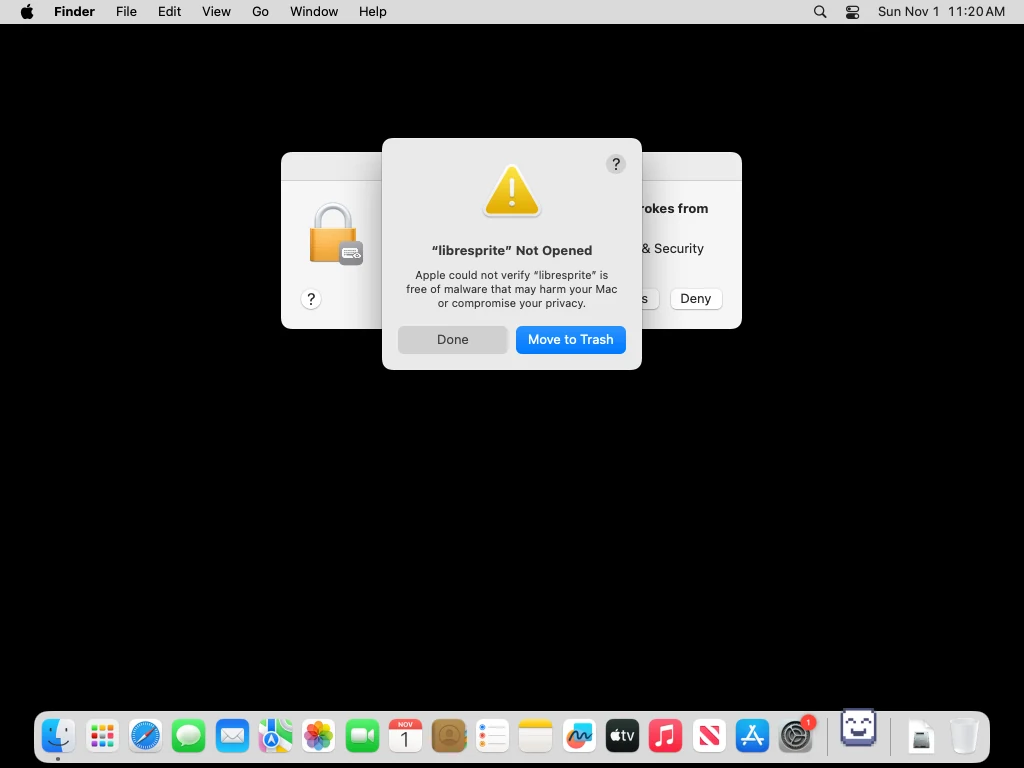
- “libresprite” Not Opened / “libresprite” is damaged and can’t be opened
- “This program does not support the version of Windows your computer is running.”
- LibreSprite opens and closes immediately, or crashes on launch
- “File skins/…/sheet.png not found”
- “gui.xml was not found”
- There is no .exe in what I downloaded
- “LibreSprite can’t load file” when opening a BMP
- “Error saving file: Cannot open” when exporting FLC or FLI
- “Cannot modify the sprite. It is being used by another command. Try again.”
- The interface is huge, tiny or blurry
- Lag, a heavy cursor or 100 % CPU
- Where is the timeline?
- Keyboard shortcuts don’t work
- The mouse draws thin lines after using a pen
- “Unable to create a user-interface display” on Linux
- Reset LibreSprite’s settings
- Report a bug upstream
- FAQ
Find your problem
- “libresprite” Not Opened / is damagedmacOS, first launch
- “This program does not support the version of Windows…”Windows on Arm
- Opens and closes immediately, or crashes on launchall systems
- “File skins/…/sheet.png not found”after changing or deleting a theme
- “gui.xml was not found”incomplete files
- There is no .exe in the zip I downloadedWindows
- “LibreSprite can’t load file” for a BMPopening files
- “Error saving file: Cannot open” when exporting FLC/FLIexporting
- “Cannot modify the sprite. It is being used by another command.”while editing
- The interface is huge, tiny or blurrydisplay
- Lag, a heavy cursor or 100 % CPUperformance
- Where is the timeline?animation
- Keyboard shortcuts don’t workinput
- The mouse draws thin lines after using a pendrawing tablets
- “Unable to create a user-interface display”Linux Wayland
- Reset all settingslast resort
“libresprite” Not Opened / “libresprite” is damaged and can’t be opened
macOS 15 shows “Apple could not verify “libresprite” is free of malware that may harm your Mac or compromise your privacy.” Other versions say the app “is damaged and can’t be opened. You should move it to the Trash.” Both mean the same: LibreSprite’s Mac builds are only ad-hoc signed and not notarized by Apple, and the downloaded copy carries the quarantine flag. We reproduced it on Apple Silicon and Intel and verified the fix:
xattr -dr com.apple.quarantine /Applications/libresprite.app
Then open it again. Full walkthrough and the System Settings alternative: Install on Mac.
“This program does not support the version of Windows your computer is running.”
This is the 1.3 installer on Windows on Arm (Snapdragon laptops, Copilot+ PCs). The installer only allows x64 Windows. Download the …windows-x86_64.zip instead: it runs on Arm64 through Windows’ x64 emulation, which we tested on Windows 11 Arm64. Details.
LibreSprite opens and closes immediately, or crashes on launch
- Check the version. Many crash reports on Apple Silicon and macOS Sequoia/Tahoe (#230, #506, #552, #650, #673) are about 1.1 and 1.2. 1.3 launched cleanly on all our test machines. Replace old copies.
- Check you have the right build. The Apple Silicon DMG does not run on Intel Macs and vice versa; the Windows builds are x64 only.
- Reset the settings. A setting that no longer works (an old UI scale, a deleted theme) can stop it starting. Rename
libresprite.iniusing the Settings Locator. - Run it from a terminal to see the error:
librespriteon Linux,/Applications/libresprite.app/Contents/MacOS/librespriteon macOS,libresprite.exefrom PowerShell on Windows. - Report it on GitHub issues with your system, chip, LibreSprite version and that terminal output.
“File skins/…/sheet.png not found”
LibreSprite looks for the theme you last selected, in data/skins/<theme>/sheet.png (next to the program or in your settings folder). The message appears when that theme’s folder is gone: you deleted a community theme while it was selected (#55, #99 “Aseprite Wild Night Theme”), or the data folder is missing. Fixes, from easiest:
- Put the theme folder back, start LibreSprite, switch to default in Preferences → Theme, then delete the theme.
- Or open
libresprite.ini(where) and delete the lineselected = …under[theme]. - If even the default theme is missing, re-extract or reinstall LibreSprite.
“gui.xml was not found”
gui.xml (menus, shortcuts, tools) lives in the data folder that ships with the program. The error means LibreSprite cannot find that folder: the zip was only partly extracted, libresprite.exe was copied out of its folder, or files were mixed from two versions (#350). Re-extract the whole zip into an empty folder and run libresprite.exe from there.
There is no .exe in what I downloaded
You downloaded “Source code (zip)”, which GitHub attaches to every release. It is the C++ source. Take libresprite-v1.3-windows-x86_64-installer.exe or …windows-x86_64.zip instead (download page).
“LibreSprite can’t load file” when opening a BMP
We reproduced this (#553). LibreSprite 1.3 opens classic BMP files (the “Windows 3.x” header written by Paint and most tools) in 8, 24 and 32 bits, but fails on BMPs that use the newer “Windows 98/2000” (V4/V5) header, which ImageMagick and some editors write by default:
Error loading frame 1 from file "p4.bmp"
LibreSprite can't load file "p4.bmp"
Convert the file to PNG first, or re-save it as an old-style BMP, for example with ImageMagick: magick input.bmp BMP3:output.bmp.
“Error saving file: Cannot open” when exporting FLC or FLI
FLC/FLI are indexed-colour formats. Saving an RGB sprite to .flc fails with that message, which does not say why (we reproduced it). Convert first: Sprite → Color Mode → Indexed, then save as FLC.
“Cannot modify the sprite. It is being used by another command. Try again.”
LibreSprite locks a sprite while a command or script works on it. You see this if you try to edit during an export, while a script runs, or (in older versions) during playback. Wait for the other action to finish, stop playback, and try again. If it keeps appearing, save, restart LibreSprite and report the steps.
The interface is huge, tiny or blurry
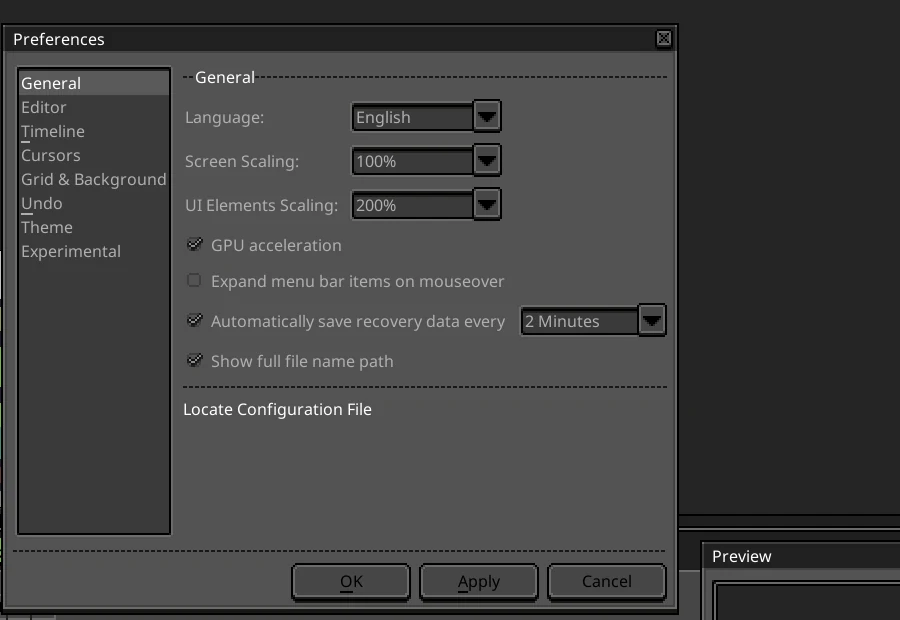
Two settings control size, in Edit → Preferences → General: Screen Scaling and UI Elements Scaling. On our test machines LibreSprite started with Screen Scaling 100 % and UI Elements Scaling 200 %, which looks very large on small screens (#598). Set UI Elements Scaling to 100 %. Blurry text on high-DPI Windows screens was improved in 1.3 (pixel rescaling turned off). If the interface is too big to reach the setting, edit the file instead: under [experimental], set ui_scale = 1 (the Settings Locator below has the command). The Flathub build (1.2) opened at 300 % in our test.
Lag, a heavy cursor or 100 % CPU
- Toggle GPU acceleration (Preferences → General) and restart; which setting is faster depends on the graphics driver.
- Untick Use native mouse cursor or tick it (Preferences → Cursors): one of them removes cursor delay on most systems (#310).
- Gaming mice at 1000 Hz or more slowed LibreSprite to a crawl for some users (#566). Lower the polling rate to 500 Hz in the mouse’s software.
- Close the Preview window (F7) on slow machines; very high zoom on large sprites also costs CPU (#289, #395).
These are the fixes reported in the issues; our test machines did not lag.
Where is the timeline?
Press Tab (View → Timeline). In 1.3 the timeline was hidden in a new sprite and even after opening a four-frame file in our tests, although Preferences → Timeline → “Show timeline automatically” was ticked. Animation guide.
Keyboard shortcuts don’t work
- Click the canvas first: shortcuts go to the focused window, and a text field or the Preview window can have focus.
- Non-US layouts: some shortcuts use the key position (for example
~for 50 % zoom). See the full list and remap in Edit → Keyboard Shortcuts. - Space as the hand tool works only while you hold it over the canvas (#397).
- Reset shortcuts in Edit → Keyboard Shortcuts → Reset.
The mouse draws thin lines after using a pen
A bug we reproduced in 1.3: after you draw with a tablet pen, the mouse keeps the pen’s last pressure (zero after lifting the nib), so a brush set to 8 px draws 1 px lines with the mouse. Pressure itself works with the pen. Details and our test in drawing tablets.
“Unable to create a user-interface display” on Linux
Reported on pure Wayland sessions (#453), followed by “Error initializing module: gui”. Start it with X11 through XWayland: SDL_VIDEODRIVER=x11 libresprite. Headless servers need SDL_VIDEODRIVER=dummy for batch mode. Linux notes.
Reset LibreSprite’s settings
All preferences, window positions and recent files are in one file, libresprite.ini. Pick your system to get its folder and the exact commands:
Your sprites are never stored there. Scripts you added are in the scripts folder next to it and stay unless you delete the whole folder.
Report a bug upstream
LibreSprite’s developers track bugs on GitHub. Include: your system and version (Windows 11 x64, macOS 15 on M2, Ubuntu 24.04…), how you installed LibreSprite and its version (Help → About), the exact message, steps to reproduce, and a small file if the problem is file-specific. The community also helps on Discord and Matrix.
FAQ
Why won’t LibreSprite open on my Mac?
Almost always Gatekeeper: the app is not notarized. Remove the quarantine flag with xattr -dr com.apple.quarantine /Applications/libresprite.app. If it then crashes, make sure you have 1.3 and the right DMG for your chip.
Why won’t LibreSprite open on Windows?
Check you ran the program, not the source code zip; that the whole zip was extracted; and on Windows on Arm, that you use the zip, not the installer.
How do I uninstall LibreSprite?
Windows: Settings → Apps → LibreSprite → Uninstall. Mac: drag libresprite.app to the Trash. Linux: delete the AppImage or remove the package. Delete the settings folder above for a clean removal.
Keep going
Found something wrong or out of date? Tell us: hello@libresprite.dev. We fix mistakes within a day.