Docs · Preferences
LibreSprite preferences and settings
Open them with Edit → Preferences (Ctrl+K, Cmd+, on a Mac). Here is every tab in LibreSprite 1.3, which changes need a restart, and where the settings live on disk.
On this page 13 sections
Short answer
How do I make LibreSprite’s interface bigger or smaller?
Edit → Preferences → General → UI Elements Scaling (100–400 %) changes the size of menus, buttons and text; Screen Scaling enlarges everything, canvas included. LibreSprite asks you to restart after changing UI Elements Scaling. If the window is too big to reach the setting, set ui_scale = 1 in libresprite.ini (see the settings folder).
General
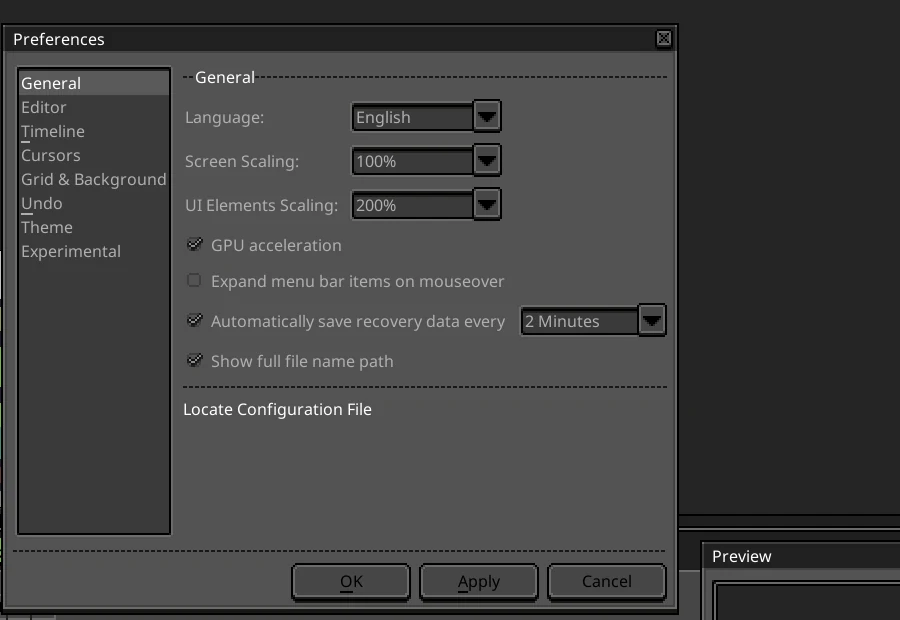
- Language: English, Chinese, French, German, Hindi, Indonesian, Italian, Japanese, Korean, Polish, Portuguese, Russian or Spanish. Restart to apply. (An Arabic translation file ships in 1.3 but is not offered in the list.)
- Screen Scaling and UI Elements Scaling: 100, 200, 300 or 400 %. On our 1440 × 900 test screen LibreSprite picked 100 % screen and 200 % UI by itself.
- GPU acceleration: draws through the graphics card. Try switching it if you see flicker, lag or a black canvas.
- Expand menu bar items on mouseover.
- Automatically save recovery data every 2 (default), 5, 10, 15 or 30 minutes: the crash-recovery backups in the
sessionsfolder. - Show full file name path in the window title.
- Locate Configuration File opens the folder holding
libresprite.ini. On Windows there is also Locate Crash Folder.
Editor
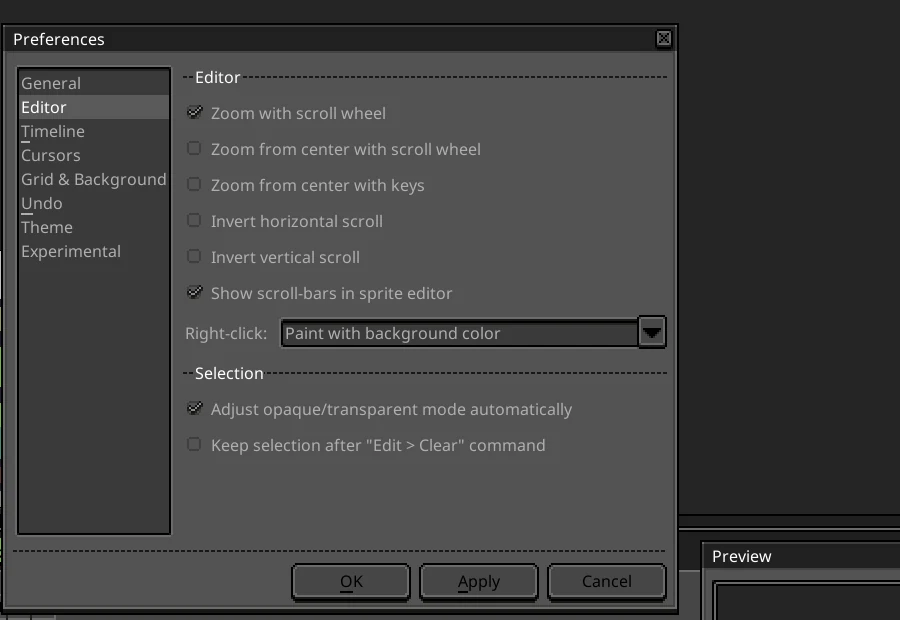
- Zoom: with the scroll wheel (on by default), by sliding two fingers on a touchpad, and whether zoom centres on the view or the pointer.
- Invert horizontal / vertical scroll and Show scroll-bars in sprite editor.
- Right-click: Paint with background color (default), Pick foreground color, Erase, or Scroll. Many artists set it to Erase.
- Selection: adjust opaque/transparent mode automatically when pasting, and keep the selection after Edit → Clear.
Timeline
Show timeline automatically and Rewind on Stop (return to the first frame when playback stops). In our tests the timeline still started hidden; press Tab.
Cursors
Use native mouse cursor (the system pointer instead of LibreSprite’s pixel cursor), the precise cursor colour (negative black-and-white or a colour you choose) and Brush Preview: None, Brush Edges, or Full Real-time Brush Preview.
Grid & Background
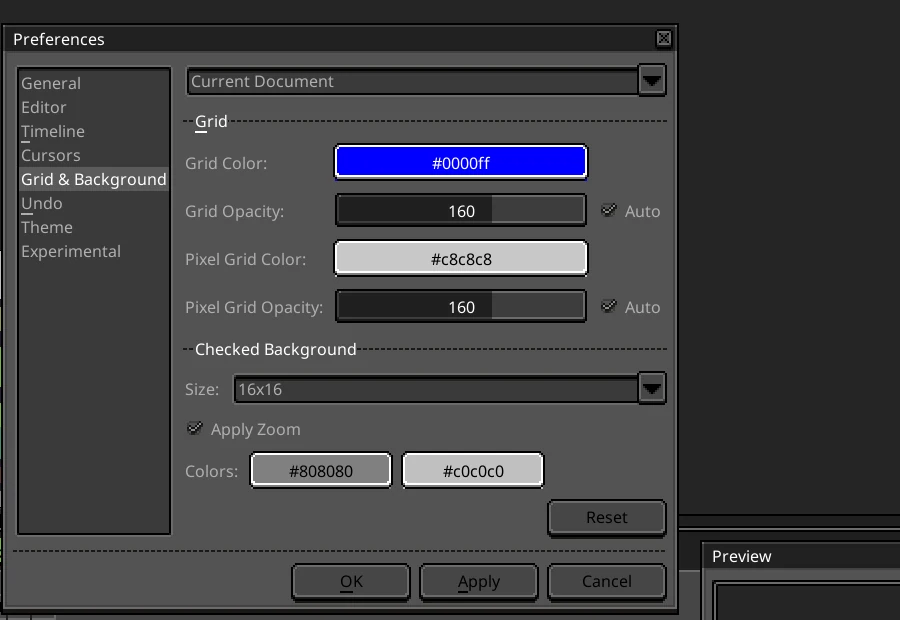
Grid and pixel-grid colour and opacity (or Auto), whether settings apply globally or to the current document, and the checked background that shows transparency: square size (16×16 down to 2×2), whether it scales with zoom, and its two colours. Reset restores the defaults.
Undo
Undo Limit (64 MB by default), Go to modified frame/layer when undoing, and Allow non-linear history. Raise the limit if long sessions run out of undo steps.
Theme

Lists the program’s themes (default, classic) and any you installed, with Select and Open Folder. A new theme needs a restart. Install a theme.
Experimental
Use native file dialog (your system’s Open/Save dialog instead of LibreSprite’s own) and Flash layer when it is selected.
Which changes need a restart
LibreSprite tells you when it needs one. In 1.3: language, UI Elements Scaling and theme. The other settings apply when you press OK or Apply.
Where settings are stored
Pick your system to see the folder and ready-made commands to open it, back it up, reset LibreSprite or fix the UI scale. Paths were checked on Linux, Windows Server 2025 and macOS 15.
What is inside (after a normal session):
| Item | What it holds |
|---|---|
libresprite.ini | All preferences, window layout, recent files. Written when LibreSprite exits. |
user.aseprite-keys | Your changed keyboard shortcuts (only once you change one) |
user.aseprite-brushes | Saved custom brushes |
palettes/ | default.ase (the default palette) and palettes you added |
scripts/ | Your JavaScript scripts (Scripts menu) |
data/skins/ | Themes you installed (Linux path; see themes) |
files/ | Small per-file settings |
sessions/ | Crash-recovery backups |
Portable mode on Windows
With the zip version, create an empty file named libresprite.ini next to libresprite.exe. LibreSprite then keeps its settings in that file instead of %AppData%. We tested this; see Windows install.
Reset to defaults
Close LibreSprite and delete (or rename) libresprite.ini in the settings folder; the next start uses defaults. Keep the rest of the folder to keep your palettes, brushes, scripts and themes. Delete the whole folder for a completely fresh start. The locator above has the exact command.
Back up or move your settings
Copy the whole settings folder while LibreSprite is closed, and copy it back into the same place on the new computer. Shortcuts can also be moved on their own with Edit → Keyboard Shortcuts → Export / Import.
FAQ
How do I change the language in LibreSprite?
Edit → Preferences → General → Language, OK, then restart LibreSprite.
LibreSprite is huge and I can’t reach Preferences. What now?
Close it, open libresprite.ini in a text editor and set ui_scale = 1 under [experimental] (and screen_scale = 1 under [general]). The locator above has a one-line command for this.
Can I make right-click erase?
Yes: Preferences → Editor → Right-click → Erase.
Does LibreSprite have presets or workspaces?
No saved workspace presets in 1.3. You can switch layouts in the View menu (Alternate Timeline, Alternate Toolbar) and keep a backup copy of libresprite.ini as your “preset”.
Keep going
Found something wrong or out of date? Tell us: hello@libresprite.dev. We fix mistakes within a day.