Install · macOS
Install LibreSprite on a Mac
LibreSprite 1.3 has two Mac downloads, one for Apple Silicon and one for Intel. Both work, but macOS blocks the first launch because the app is not notarized by Apple. We installed both on macOS 15 machines and verified the fix below.
On this page 11 sections
Short answer
The short version
Download the arm64 DMG for an M1–M4 Mac or the x86_64 DMG for an Intel Mac, drag libresprite into Applications, then run this once in Terminal:
xattr -dr com.apple.quarantine /Applications/libresprite.app
After that it opens like any other app.
Which Mac do I have?
Apple menu → About This Mac. If it says Chip: Apple M1 (M2, M3, M4…), take libresprite-v1.3-macos-arm64.dmg. If it says Processor: Intel, take libresprite-v1.3-macos-x86_64.dmg. Each DMG contains a single-architecture app (we checked with lipo), so the wrong one will not run; there is no universal build.
Install from the DMG
Download the DMG for your Mac
From the download page (22.5 MB for Apple Silicon, 25.2 MB for Intel).
Open it and drag libresprite to Applications
The disk image mounts as LibreSprite and shows
libresprite.appnext to an Applications shortcut. Drag one onto the other, then eject the disk image.Open it once: macOS blocks it
Double-click libresprite in Applications. On macOS 15 you get this:
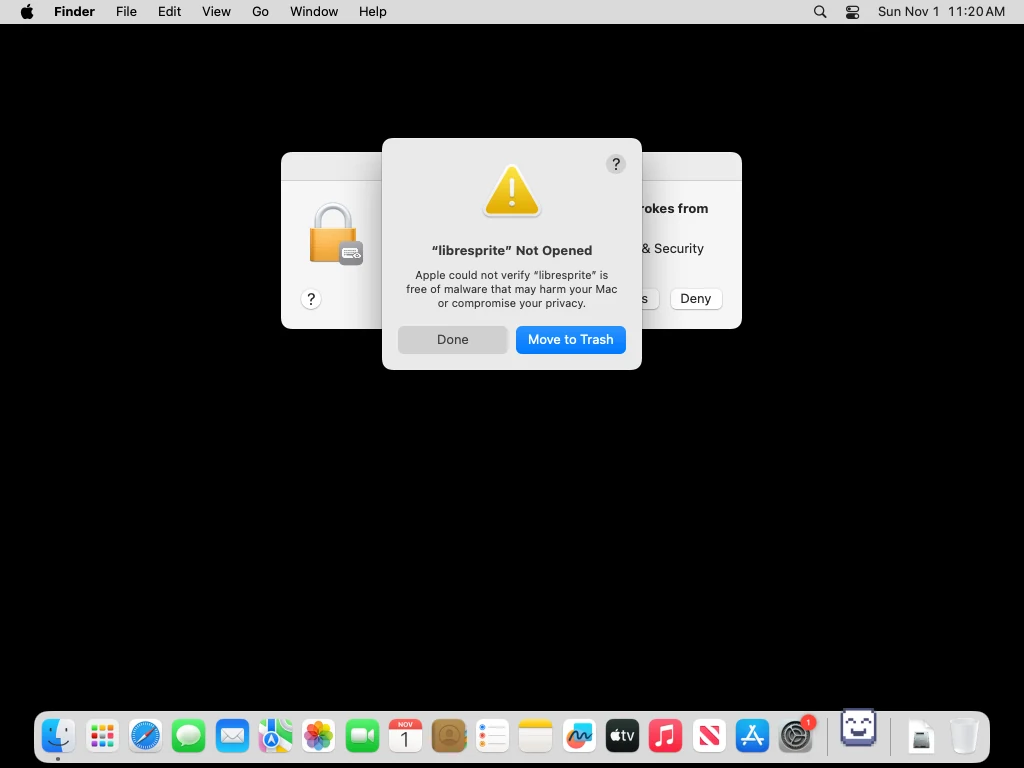
Real screenshot · macOS 15.8 (Apple Silicon) · LibreSprite 1.3 (arm64 DMG)Opening a quarantined copy on macOS 15: ““libresprite” Not Opened. Apple could not verify “libresprite” is free of malware…” with Done and Move to Trash. Click Done, not Move to Trash. Nothing is wrong with the file: macOS shows this for any downloaded app that is not signed with an Apple Developer ID and notarized, and LibreSprite’s builds are ad-hoc signed only.
Remove the quarantine flag
Open Terminal (Applications → Utilities) and run:
xattr -dr com.apple.quarantine /Applications/libresprite.appThis removes the “downloaded from the internet” mark that triggers the check. It changes nothing else.
Open LibreSprite
Double-click it again. It now starts normally, on Apple Silicon and on Intel.
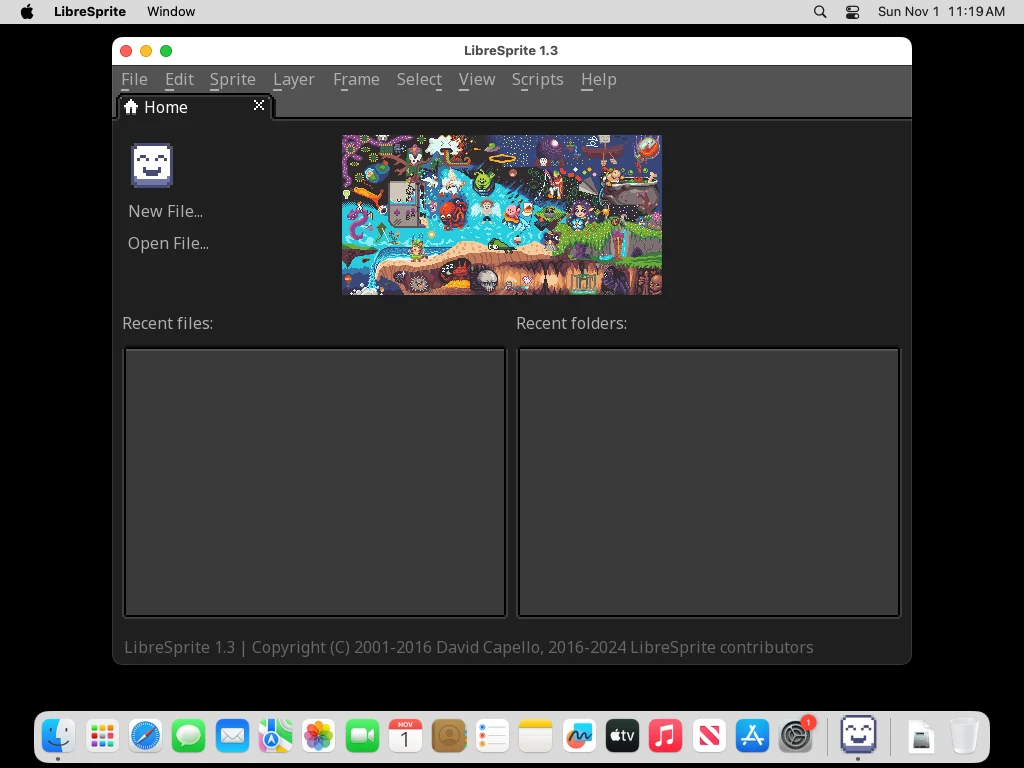
Real screenshot · macOS 15.8 (Apple Silicon) · LibreSprite 1.3 (arm64 DMG)LibreSprite 1.3 running on macOS 15 (Apple Silicon) after removing the quarantine flag.
“libresprite is damaged and can’t be opened. You should move it to the Trash.”
This is the same situation with a different message. Depending on the macOS version and how the file was downloaded, macOS says the app is “damaged” instead of “Not Opened”. Many LibreSprite users have reported it (GitHub issues #557, #579, #531, #540). It is not real damage and not a malware detection: the app is unsigned by Apple and carries the quarantine flag. The fix is identical: the xattr command above. If you downloaded LibreSprite from somewhere other than GitHub, delete it and get the official DMG first.
The alternative without Terminal: Open Anyway
On macOS 15 you can also allow it in System Settings: after the blocked attempt, open System Settings → Privacy & Security, scroll to the Security section, and click Open Anyway next to the message about libresprite. Confirm with your password, and open the app again. (On older macOS versions, right-click the app → Open gave the same option.) We used the Terminal route in our tests because it is the same on every version.
What we checked on the Mac builds
| Check | Apple Silicon DMG | Intel DMG |
|---|---|---|
| SHA-256 matches our hash | yes | yes |
Architecture (lipo -archs) | arm64 only | x86_64 only |
| Code signature | ad-hoc, valid on disk, no Team ID | ad-hoc, valid on disk, no Team ID |
| Notarization ticket | none | none |
Gatekeeper assessment (spctl) | rejected | rejected |
| Starts after removing the quarantine flag | yes (macOS 15.8) | yes (macOS 15.7) |
--version from the bundle | LibreSprite 1.3 | LibreSprite 1.3 |
“Rejected” stays after the fix: removing the flag does not sign the app, it only stops macOS from treating it as a fresh download. Version 1.3 added a signing step for the Apple Silicon DMG in the release workflow, but it is still an ad-hoc signature, not Apple notarization.
It crashes on launch
Older Mac builds (1.1 and 1.2) were the source of many “crashes on launch” reports on Apple Silicon, macOS Sequoia and Tahoe (#230, #506, #552, #650, #673). Version 1.3 launched cleanly on both our Macs. If you still have an old copy, delete it and install 1.3. If 1.3 crashes for you, reset its settings (below) and report it upstream with your macOS version and chip.
Homebrew?
There is no official Homebrew formula or cask for LibreSprite (formulae.brew.sh has none). Unofficial taps exist; they are maintained by individuals, so we recommend the DMG.
Settings folder
~/Library/Application Support/LibreSprite
In Finder press Cmd+Shift+G and paste that path (~/Library is hidden). It holds libresprite.ini, palettes/default.ase, scripts/, sessions/ and user.aseprite-brushes. Quit LibreSprite and delete libresprite.ini to reset all preferences.
Command line on macOS
The program inside the bundle accepts the same command-line options as on Linux and Windows; we exported a sprite sheet this way on both Macs:
/Applications/libresprite.app/Contents/MacOS/libresprite --version
/Applications/libresprite.app/Contents/MacOS/libresprite -b walk.ase --sheet walk.png --data walk.jsonUninstall
Drag libresprite.app from Applications to the Trash, and delete ~/Library/Application Support/LibreSprite to remove its settings.
FAQ
Does LibreSprite work on M1, M2, M3 and M4 Macs?
Yes, with the arm64 DMG. It runs natively on Apple Silicon; we tested it on macOS 15.8.
Does LibreSprite work on Intel Macs?
Yes. Version 1.3 added an Intel (x86_64) DMG; earlier releases only had Apple Silicon builds. Tested on macOS 15.7.
Does it work on macOS 12 Monterey or older?
We tested macOS 15 only. The app does not declare a minimum macOS version in its Info.plist, so we cannot promise older systems; the older official site listed macOS 11 as the minimum.
Is removing the quarantine flag safe?
It is safe for a file you know is genuine: download LibreSprite only from its GitHub releases and check the SHA-256 on our download page. Do not use this command on apps from sources you do not trust.
Keep going
Found something wrong or out of date? Tell us: hello@libresprite.dev. We fix mistakes within a day.