Compare · LibreSprite vs Piskel
LibreSprite vs Piskel
Piskel is the free pixel-art editor that opens in a browser tab; LibreSprite is a free desktop editor descended from Aseprite. Both draw sprites and animate them frame by frame, but they are built for different stages: Piskel to start in seconds, LibreSprite to keep going. We used Piskel on 1 November 2026, imported a LibreSprite animation into it, and compared the two.
On this page 4 sections
Short answer
Should I use Piskel or LibreSprite?
Use Piskel to try pixel art right now with no install, on any computer with a browser (including Chromebooks), for small sprites and GIFs. Use LibreSprite when you need more: per-frame timing, tags, blend modes, indexed palettes, sprite sheets with JSON for game engines, batch export from the command line, and .ase files that open in Aseprite and Pixelorama. Both are free.
Pick LibreSprite if…
- you make game sprites with several animations per character
- frames need different durations (holds, quick blinks)
- you want sheets with JSON data, or command-line export
- you want to work offline on Windows, macOS, Linux or Android
Pick Piskel if…
- you are trying pixel art for the first time
- you can’t install software (school or work computer, Chromebook)
- you want a quick GIF or small sprite and are done
- you like a very simple, uncluttered tool
What we found in Piskel
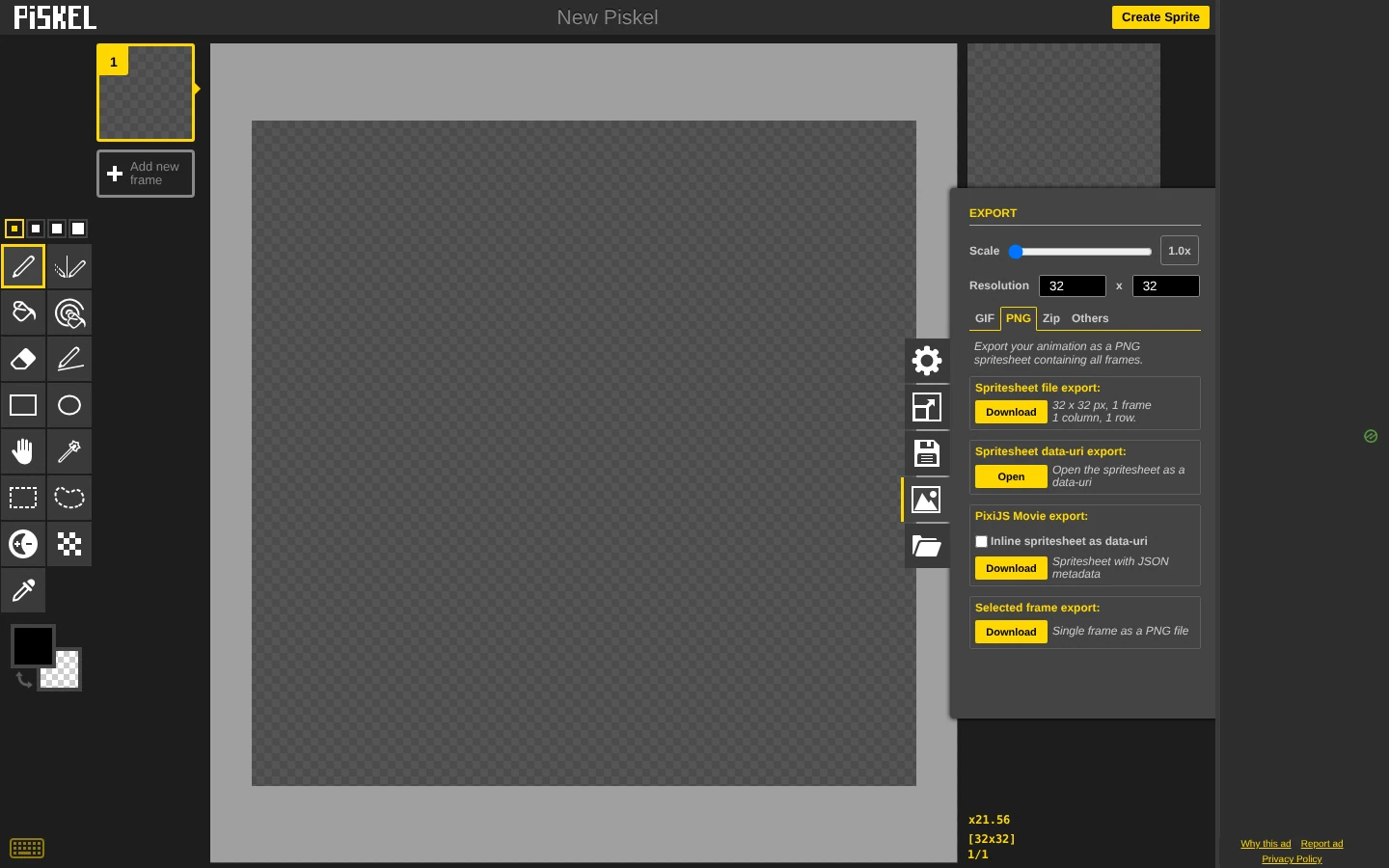
- A new sprite is 32 × 32 with the frame list on the left, a live preview at 12 FPS top right, and Layers, Transform and Palettes panels.
- Import takes PNG, JPG, BMP and animated GIF images,
.piskelfiles and saves kept in the browser. There is no option for.asefiles. - Export has four tabs: GIF; PNG (sprite sheet, sprite sheet with JSON for PixiJS, single frame); Zip (one PNG per frame, optionally split by layer); and a C-array file.
- We imported Pip’s idle animation, a GIF exported by LibreSprite with 4 frames of 250 ms. Piskel loaded all 4 frames, but played them at 12 FPS (83 ms per frame), three times too fast. Piskel has one speed for the whole animation, so timing from other editors is lost.
- The image import has “Smooth resize” ticked by default; untick it so pixel art stays sharp if you resize while importing.

Feature comparison
| Feature | LibreSprite 1.3 | Piskel (web) |
|---|---|---|
| Runs | Windows, macOS, Linux, Android APK | Browser (also an older offline app) |
| Install needed | Yes (portable zip/AppImage available) | No |
| Layers | Yes, with blend modes and opacity | Yes, with opacity |
| Frame timing | Per frame, in milliseconds | One FPS for the whole animation |
| Tags (named animations in one file) | Yes | No |
| Onion skin | Yes (F3) | Yes |
| Indexed colour mode, palette files (.gpl, .pal, .ase…) | Yes: palettes | Palettes panel; no indexed mode |
| Pixel-perfect pencil, shading ink, symmetry | Yes | Pencil, vertical mirror pen, lighten/darken tool, dithering tool |
| Import | PNG, GIF, JPG, BMP, PCX, TGA, WebP, .ase and more: formats | PNG, JPG, BMP, GIF, .piskel |
| Export | PNG, GIF, sprite sheets with JSON (durations, tags), .ase, WebP, and more | GIF, PNG sheet (+ PixiJS JSON), ZIP of frames, C file |
| Command-line export | Yes: CLI | No |
| Scripting | JavaScript | No |
| Where your work is stored | Files on your disk | Browser storage, or download a .piskel file |
| Licence | GPLv2 | Apache-2.0 |
Piskel’s tool list is from its interface on 1 Nov 2026; LibreSprite’s from our tests of 1.3.
Moving from Piskel to LibreSprite
Export from Piskel
Export → PNG → sprite sheet (one row is easiest), or export a GIF. Note the frame size and FPS.
Open in LibreSprite
A GIF opens directly as frames. A sheet: File → Import Sprite Sheet (Ctrl+Alt+I), enter the frame width and height.
Set the timing
Piskel’s FPS becomes milliseconds per frame: 1000 ÷ FPS (12 FPS = 83 ms). Select all frames and press P. Then save as
.ase.
Going the other way, export a GIF or a PNG sheet from LibreSprite and import it in Piskel, then set the FPS by hand.
FAQ
Is Piskel free?
Yes, free and open source (Apache-2.0). LibreSprite is free too (GPLv2).
Can Piskel open .ase or .aseprite files?
No. Its import accepts PNG, JPG, BMP, animated GIF and .piskel. Export a GIF or sheet from LibreSprite first.
Why does my animation play faster in Piskel?
Piskel ignores per-frame durations and uses one FPS (12 by default). A LibreSprite GIF with 250 ms frames plays three times too fast until you lower Piskel’s FPS to 4.
Is there a LibreSprite that runs in the browser?
Only unofficial builds; see LibreSprite online. For an official browser editor with more features than Piskel, see Pixelorama.
Keep going
Found something wrong or out of date? Tell us: hello@libresprite.dev. We fix mistakes within a day.