Docs · Export
Exporting and importing in LibreSprite
LibreSprite saves your work as .ase and exports copies as PNG, GIF, sprite sheets and more. We exported our demo sprite in every format and layout with LibreSprite 1.3; every image and JSON sample on this page is that output.
On this page 8 sections
Short answer
Which export do I need?
| You want | Use | Key |
|---|---|---|
| To keep working on it later | File → Save as .ase | Ctrl+S |
| An animated image to share | File → Export → .gif | Ctrl+Alt+Shift+S |
| One PNG per frame | File → Export → .png | Ctrl+Alt+Shift+S |
| All frames in one image for a game engine | File → Export Sprite Sheet | Ctrl+Alt+E |
| Exports in a build script | The command line | libresprite -b … |
Save, Save As and Export
Save (Ctrl+S) and Save As (Ctrl+Shift+S) change the file you are editing. Export (File → Export, Ctrl+Alt+Shift+S; called Save Copy As in older builds) writes a copy in another format and leaves your .ase as the open document. Its dialog has a Resize option (100 %, 200 %…) so you can export enlarged pixel art without changing the sprite. Ctrl+Shift+X repeats the last export.
Export PNG: one file per frame
A single-frame sprite exports to one PNG. An animation does not: LibreSprite writes one numbered file per frame. Exporting our four-frame sprite as out.png produced out1.png, out2.png, out3.png and out4.png. The same happens for BMP, JPG, PCX, TGA, ICO, QOI and WebP. To export just the current frame, copy it into a new sprite first (Edit → New Sprite from Selection) or use a frame range on the command line.
Two naming surprises from our tests: a name that already ends in a number is treated as the start of the sequence (sprite-16.png became sprite-16.png … sprite-19.png), and the {frame} placeholder is not expanded in a plain export name (it is on the command line with --filename-format).
Transparency is kept. Hidden layers are left out.
Export an animated GIF
File → Export, name ending in .gif. The GIF keeps every frame and its duration; layers are merged and tags are dropped. Set Resize to 400 %–800 % for sharing online, because a 32 px GIF is a speck on most screens.

GIF supports only fully opaque or fully transparent pixels and 256 colours per frame, which suits pixel art.
Export a sprite sheet
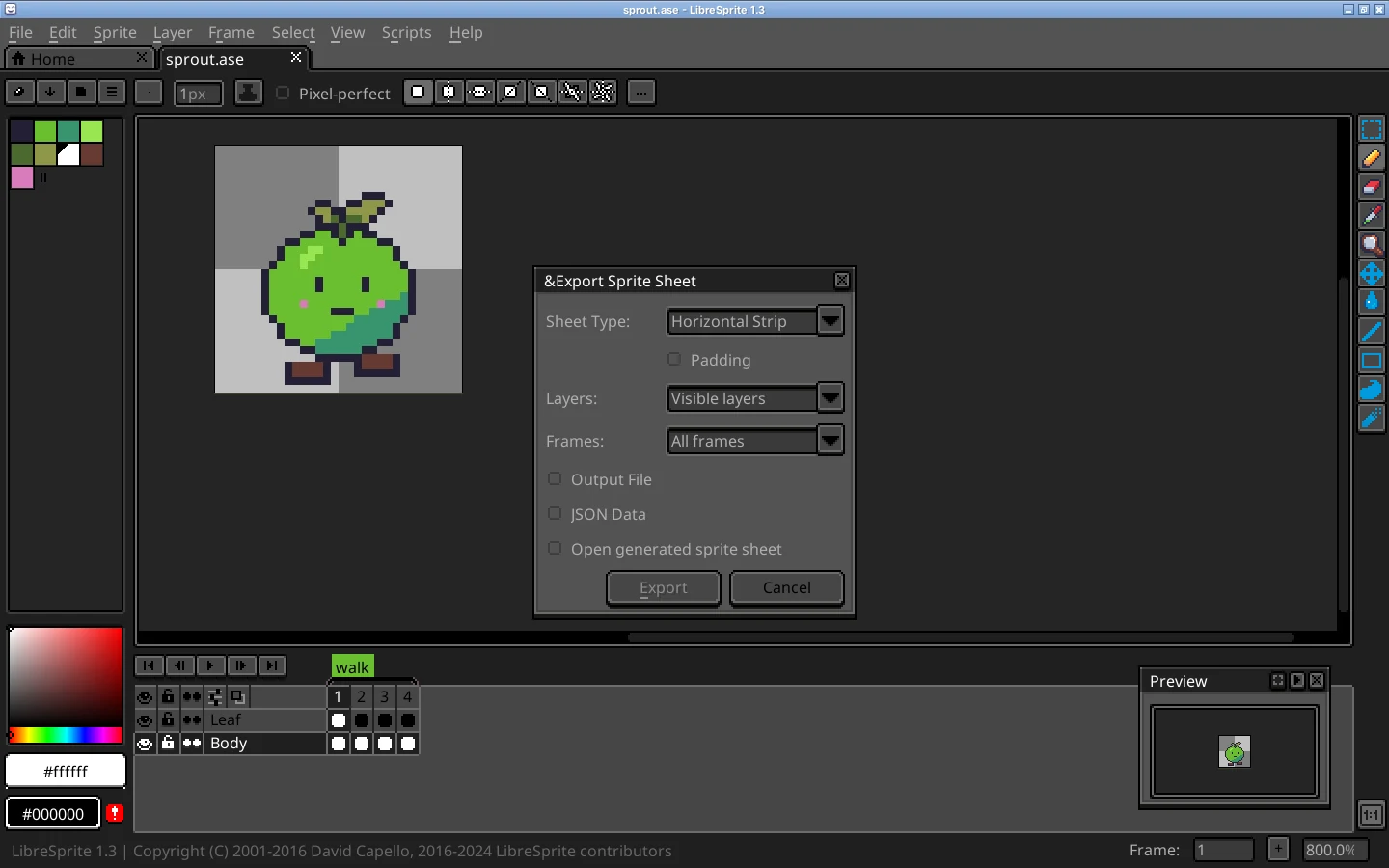
File → Export Sprite Sheet (Ctrl+Alt+E) puts all frames into one image, optionally with a JSON file that tells a game engine where each frame is and how long it lasts.
The options
- Sheet Type: Horizontal Strip, Vertical Strip, By Rows, By Columns. With rows or columns you set the number of columns or rows, or tick Best fit for texture.
- Padding: Border (around the whole sheet), Shape (between frames) and Inner (inside each frame), in pixels. Padding prevents texture bleeding in engines that filter textures.
- Per Tag: one row per tag, handy for walk/idle/jump sets.
- Layers: visible layers (default) or selected layers. Frames: all frames or selected frames.
- Output File: the PNG. JSON Data: tick it to write the frame data, as a Hash (frames keyed by name) or an Array, with optional Meta for layers and frame tags.
- Open generated sprite sheet opens the result in a new tab.
Layouts, as LibreSprite exported them




The JSON file
This is the start of the Hash JSON LibreSprite wrote for the horizontal sheet with layer and tag meta switched on. Each frame has its rectangle on the sheet and its duration; meta.frameTags lists the tags with their first and last frame.
{
 "frames": {
  "sprout 0.ase": {
   "frame": { "x": 0, "y": 0, "w": 32, "h": 32 },
   "rotated": false,
   "trimmed": false,
   "spriteSourceSize": { "x": 0, "y": 0, "w": 32, "h": 32 },
   "sourceSize": { "w": 32, "h": 32 },
   "duration": 120
  }
 },
 "meta": {
  "app": "https://github.com/LibreSprite/LibreSprite/",
  "version": "1.3",
  "image": "sprout.png",
  "format": "RGBA8888",
  "size": { "w": 128, "h": 32 },
  "scale": "1",
  "frameTags": [ { "name": "walk", "from": 0, "to": 3, "direction": "forward" } ],
  "layers": [
   { "name": "Body", "opacity": 255, "blendMode": "normal" },
   { "name": "Leaf", "opacity": 255, "blendMode": "normal" }
  ]
 }
}
The format is the same as Aseprite’s, so importers written for Aseprite JSON (Godot, Unity, Phaser, LÖVE, Defold and others) generally read it. Two quirks we found: with a scale applied, the frames are scaled but meta.scale still says "1"; and on the command line --sheet-type vertical produced a horizontal strip, while columns gives the vertical one.
Using the sheet in a game engine
- Godot 4: import the PNG with filtering off, use an AnimatedSprite2D or the “import from sprite sheet” helper. Step by step.
- Unity: set Filter Mode to Point and Compression to None, then slice the sheet with the Sprite Editor. Step by step.
- GameMaker: add a sprite and use Import Strip Image with the frame count.
Upscaling for sharing
Always scale pixel art by whole numbers (200 %, 300 %, 400 %…) with nearest-neighbour, which LibreSprite’s Resize option and --scale do. Scaling by 150 % or with smoothing makes it blurry. Our upscaler does it in the browser for any PNG.
Importing images and sprite sheets
- Open an image: File → Open (Ctrl+O) opens PNG, GIF, JPG, BMP and the other supported formats as a new sprite. Opening
name1.pngfrom a numbered set (name1.png,name2.png…) loads the whole sequence as frames; it did on the command line in our tests, and the GUI asks first. - Import an image into the current sprite: open it, copy (Ctrl+C), switch tabs and paste (Ctrl+V) onto a new layer.
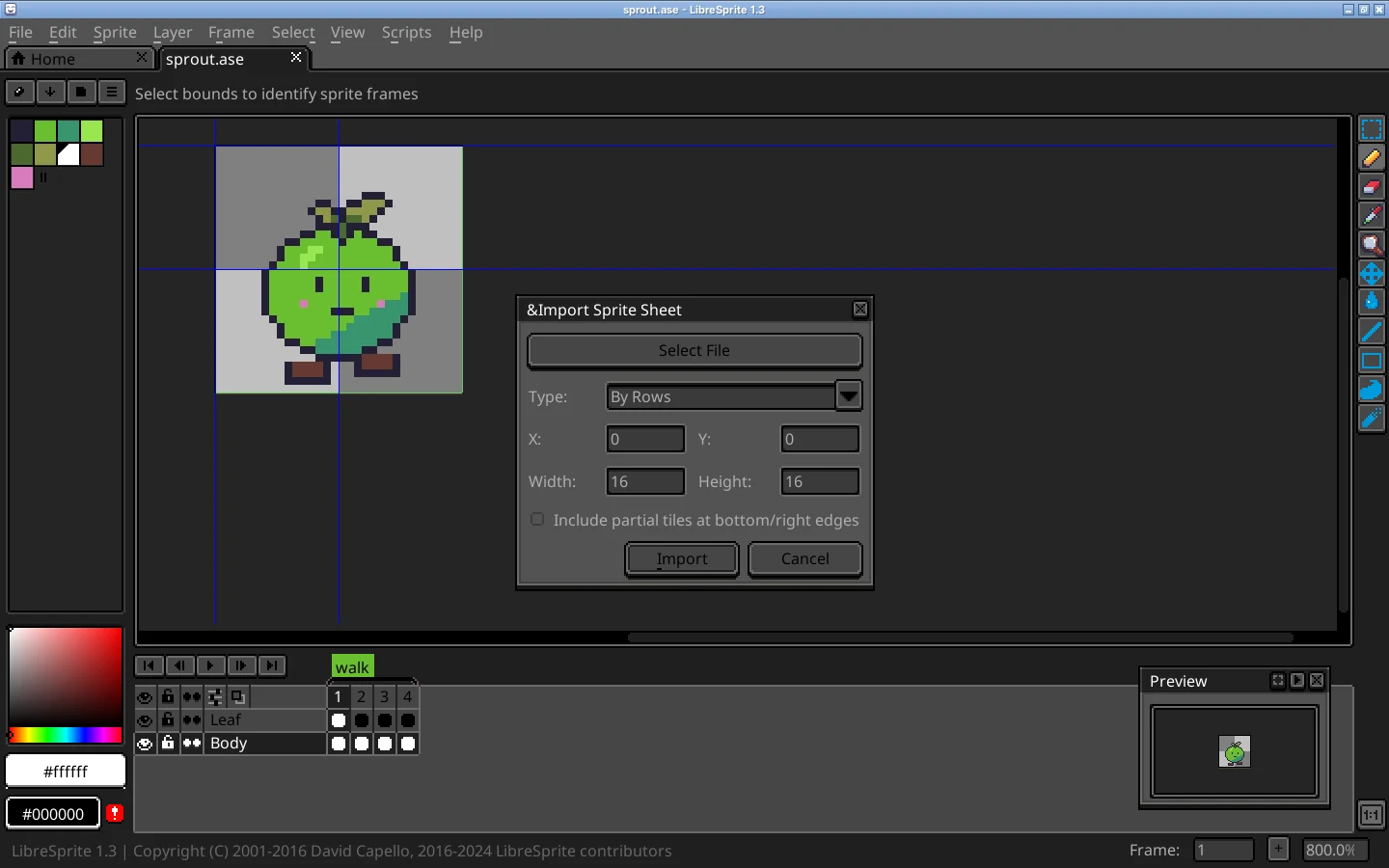
- Import a sprite sheet: open the sheet PNG, then File → Import Sprite Sheet (Ctrl+Alt+I), choose the type and the cell size; LibreSprite cuts it into frames.
- Palettes: the palette options button → Load Palette (
.gpl,.pal,.col, or an image). Palettes.
FAQ
How do I export a sprite sheet in LibreSprite?
File → Export Sprite Sheet (Ctrl+Alt+E), choose a sheet type, tick Output File and, for engines, JSON Data, then Export.
How do I export a GIF from LibreSprite?
File → Export (Ctrl+Alt+Shift+S), type a name ending in .gif, set Resize, and save. Frame durations are kept.
How do I export each frame as a separate PNG?
Export as .png: an animation is written as numbered files, one per frame (name1.png, name2.png…).
How do I scale up my sprite when exporting?
Use the Resize option in the Export dialog (or --scale on the command line) with a whole number such as 400 %.
Where does LibreSprite export to?
Wherever you choose in the dialog; by default the folder of the current file. Since 1.3 you can type or paste a full path in the file selector.
Keep going
Found something wrong or out of date? Tell us: hello@libresprite.dev. We fix mistakes within a day.