Docs · Animation
Animation in LibreSprite
LibreSprite animates frame by frame: you draw each frame, LibreSprite shows the neighbouring frames faintly (onion skin) and plays the sequence at the durations you set. Everything happens in the timeline at the bottom of the window.
On this page 9 sections
Short answer
Does LibreSprite have animation?
Yes, it is what it was built for. Press Tab to show the timeline, Alt+N to add a frame (a copy of the current one), F3 for onion skin, Enter to play, and P to set a frame’s duration. Export the result as a GIF or a sprite sheet.
The timeline
The timeline is hidden by default in 1.3: press Tab (View → Timeline). From left to right it shows playback buttons, the layer list with eye, padlock and continuous icons, and one column per frame. Tags appear as coloured bars above the frame numbers, like Sprout’s green “walk” tag:
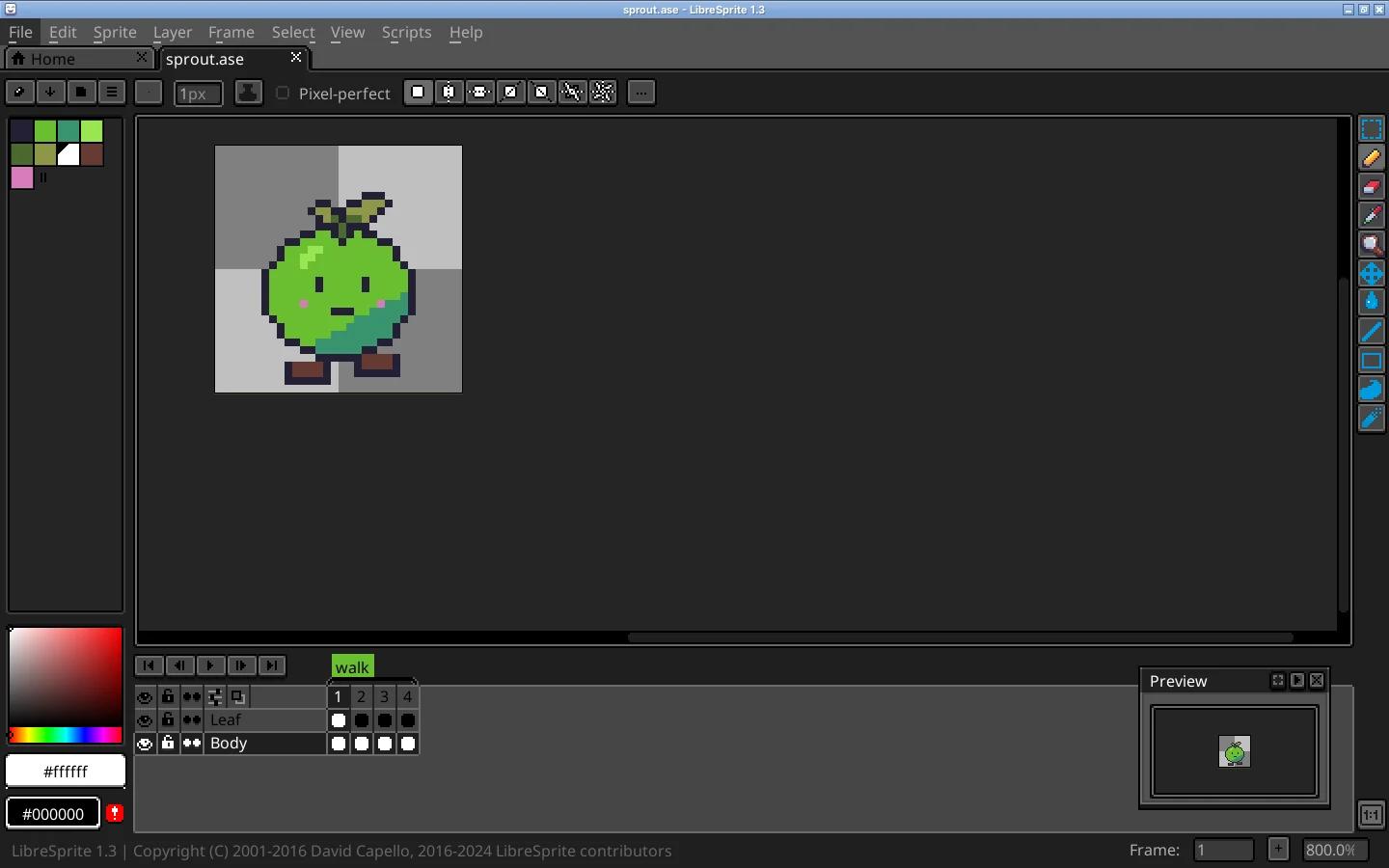
Click a frame number to go to it; click and drag across frames or cels to select several. View → Alternate Timeline flips the layout so frames run downwards.
Add, duplicate, delete and move frames
| Action | Key | What it does |
|---|---|---|
| New Frame | Alt+N | Adds a frame after the current one, copying its cels. Most common. |
| New Empty Frame | Alt+B | Adds a blank frame. |
| Duplicate Cel(s) | Alt+D | Copies the selected cels into a new frame. |
| Duplicate Linked Cel(s) | Alt+M | Same, but the copies stay linked to the original. |
| Remove Frame | Alt+Shift+C | Deletes the current (or selected) frames. |
| Reverse Frames | Alt+I | Reverses the order of the selected frames. |
To move a frame, drag its number in the timeline to a new place. Move between frames with ← →, Home and End, or jump with Alt+G; , and . step within the current tag.
Onion skin
Onion skinning shows the previous and next frames as faint ghosts behind the one you are drawing, so you can judge spacing and movement. The name comes from the thin onion-skin paper animators drew on. Turn it on with F3 (View → Show Onion Skin) or the onion button in the timeline.
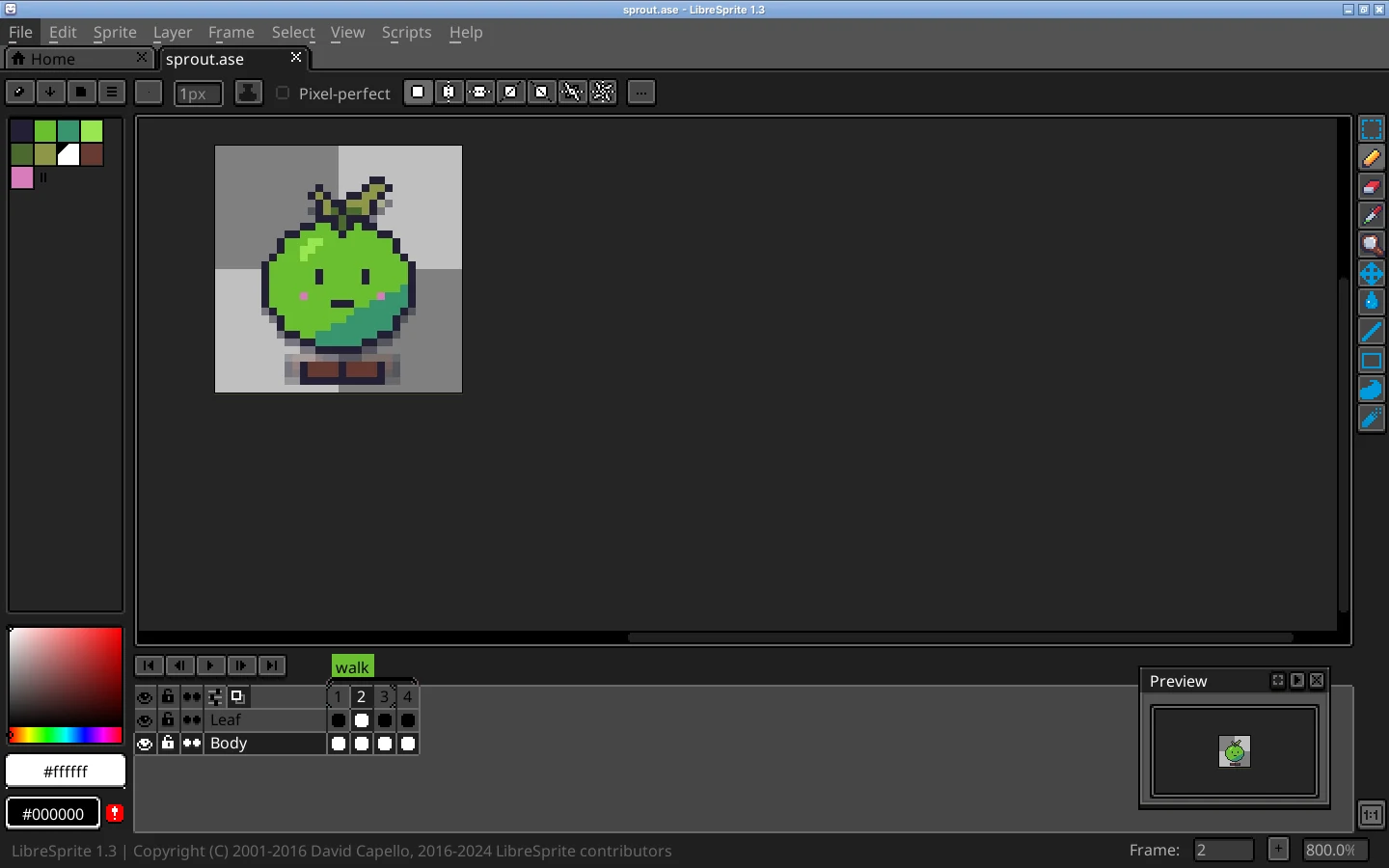
Its settings, from the onion button’s menu (defaults in brackets): frames before [1] and after [1], opacity [68] and how much it fades per extra frame [28], merge or red/blue tint (previous frames red, next frames blue), draw ghosts behind or in front, loop through the current tag, and show only the current layer.
Frame duration and FPS
LibreSprite stores a duration per frame in milliseconds, not one frame rate for the whole sprite. Press P (Frame → Frame Properties) and type it; select several frames first to change them together, or use Frame → Constant Frame Rate to make all frames equal.
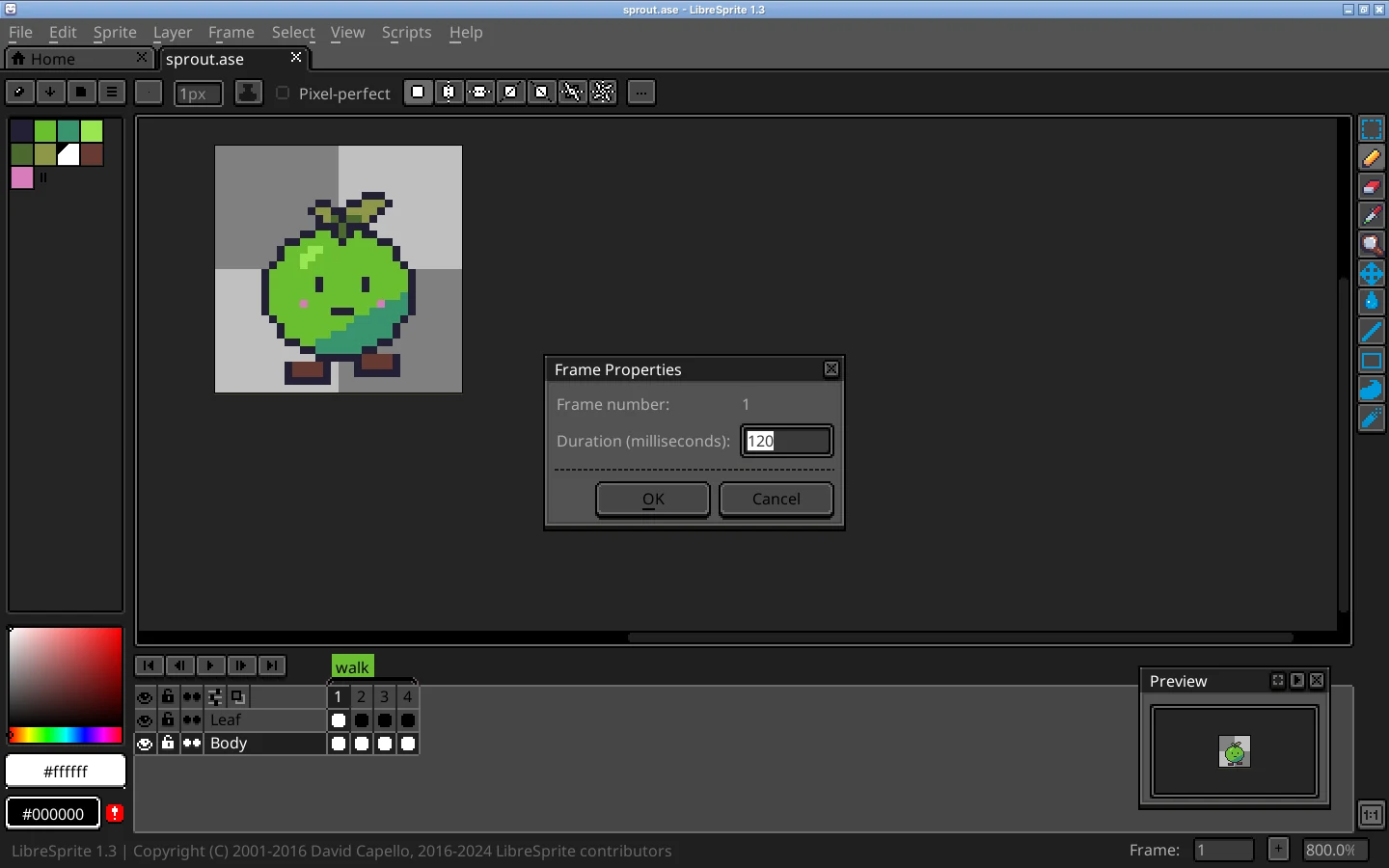
Pixel-art animation usually runs at 6–12 fps (83–167 ms). Hold key frames longer: a 300 ms pause on a punch or a blink reads better than a uniform rate.
Playback and loops
Enter plays and stops. The Preview window (F7) plays the animation at real size while you keep drawing zoomed in; F8 plays it full screen. To loop only part, select frames and press F2 (View → Set Loop Section). Preferences → Timeline → “Rewind on Stop” returns to the first frame when you stop.
Tags: several animations in one file
Select a range of frames and choose Frame → Tags → New Tag. Give it a name (walk, idle, jump), a colour and a direction: Forward, Reverse or Ping-pong (forward then back). Tags appear above the frames, playback and onion skin can loop within a tag, and exports can be split by tag: the sprite sheet JSON lists every tag with its first and last frame, and the command line can export one tag with --frame-tag.
For Godot users
A Godot importer notes that LibreSprite files do not carry Aseprite’s newer tag repeat counts or the “ping-pong reverse” direction; plain Forward, Reverse and Ping-pong work.
Linked cels save work
If part of the sprite stays the same over several frames, link those cels (Alt+M) instead of copying them: edit once, every frame updates. More on linked cels.
Export the animation
File → Export (Ctrl+Alt+Shift+S) to an animated .gif keeps the durations; File → Export Sprite Sheet (Ctrl+Alt+E) makes a PNG strip or grid for game engines. Saving to PNG writes one numbered file per frame. Exporting in detail.
FAQ
How do I turn on onion skin in LibreSprite?
Press F3 or choose View → Show Onion Skin. Its settings are in the onion button’s menu in the timeline.
How do I change the animation speed?
Select the frames, press P (Frame Properties) and set the duration in milliseconds: 100 ms is 10 frames per second.
How do I add frames in LibreSprite?
Frame → New Frame (Alt+N) copies the current frame; New Empty Frame (Alt+B) adds a blank one. Show the timeline first with Tab.
How do I save an animation?
Save as .ase to keep everything, then export a copy as GIF (animated) or as a sprite sheet PNG.
Keep going
Found something wrong or out of date? Tell us: hello@libresprite.dev. We fix mistakes within a day.