Guide · Walk cycle
A pixel art walk cycle in LibreSprite
Four frames are enough for a convincing walk at small sizes. This guide builds one using our demo sprite “Sprout”, whose walk you can see animated on our home page; every frame below was exported by LibreSprite.
On this page 5 sections
Short answer
How many frames is a pixel art walk cycle?
Four is the classic minimum: contact, passing, contact (other foot), passing, with the body one pixel higher on the passing frames. At 100–150 ms per frame it reads as a steady walk. Six or eight frames look smoother but take twice the work; start with four.
The four poses




Notice how little changes: the feet move two pixels, the body bobs one pixel, the leaf sways one pixel on the “up” frames. Small, consistent moves read better than big ones at 32 × 32.
Animate it
Draw frame 1
Your character in the contact pose on frame 1. Keep separate layers for parts that move differently (Sprout uses Body and Leaf).
Show the timeline and add frames
Tab shows the timeline. Alt+N adds a frame that copies the current one: press it three times for frames 2–4.
Turn on onion skin
F3 shows the previous and next frames faintly, so you can see exactly how far things move.
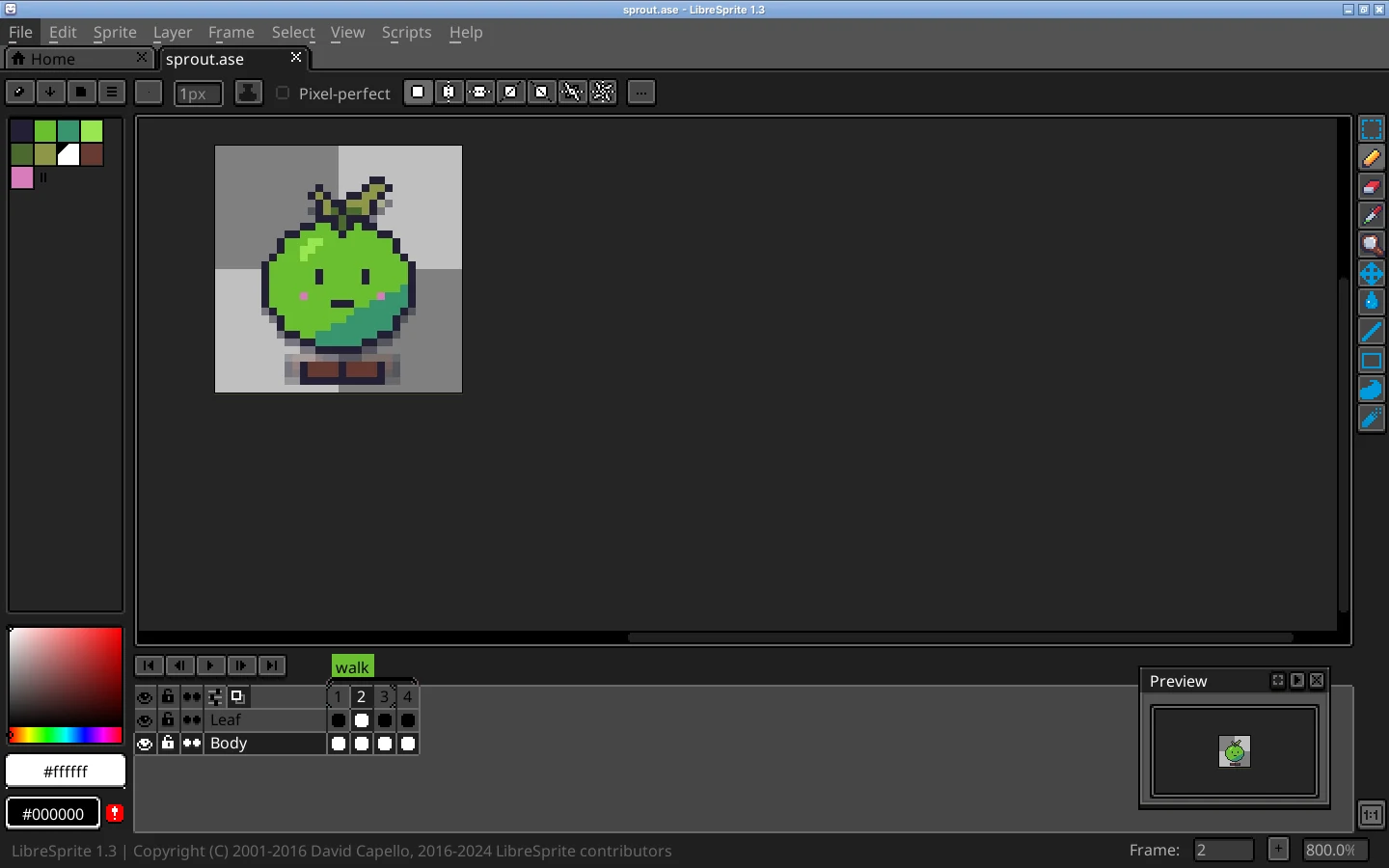
Real screenshot · Linux (Ubuntu 24.04, X11) · LibreSprite 1.3 (AppImage)Onion skin on (F3) at frame 2: the previous frame shows faintly under the current one. Edit frames 2–4
Frame 2: move the feet together under the body, and select the body and move it up one pixel (arrow key with a selection). Frame 3: mirror of frame 1 (other foot forward). Frame 4: like frame 2. With ←/→ you flip between frames quickly.
Set the timing
Select all four frames in the timeline and open Frame Properties (P): 120 ms each (about 8 frames per second). Faster (80–100 ms) feels brisk, slower (150–200 ms) relaxed. Use our ms ↔ FPS converter.
Play and tag
Enter plays it. Frame → Tags → New Tag names the range “walk”, so engines and the sprite-sheet JSON know where it starts and ends.
Export
- Animated GIF: File → Export, name it
walk.gif, Resize 400 % or more for sharing. - Game engine: File → Export Sprite Sheet, horizontal strip + JSON with tags: Godot, Unity.
- Command line:
libresprite -b --list-tags walk.ase --sheet walk.png --data walk.json.
Making it better
- Arms swing opposite to legs: left foot forward, right arm forward.
- Squash slightly on contact (one pixel wider, one shorter) for a bouncy character.
- Secondary motion: hair, ears or a leaf lag one frame behind the body.
- Eight frames: add a “down” pose after each contact and an “up” pose before it for a smoother, heavier walk.
- Check the silhouette: hide colour layers or fill a copy with black; a good walk reads even as a shadow.
FAQ
What frame rate should a walk cycle be?
Pixel-art walks usually use 8–12 FPS (80–125 ms per frame). Sprout uses 120 ms.
Should the character move across the screen in the animation?
No: animate it walking on the spot. The game moves the sprite; that way the same cycle works at any speed.
How do I copy a frame and flip it for the other step?
Duplicate the frame (Alt+N), select the legs and flip them with Shift+H, then fix details by hand. Don’t flip the whole character if it has a lit side.
Keep going
Found something wrong or out of date? Tell us: hello@libresprite.dev. We fix mistakes within a day.