Get it · Android, iPad, Chromebook
LibreSprite on Android (and iPad, iPhone, Chromebook)
LibreSprite was made for desktops, but there is an official Android build. Here is exactly what that APK is, how to install it, what goes wrong on phones and tablets, and what to do on an iPad or a Chromebook.
On this page 9 sections
Short answer
Is LibreSprite available on Android?
Yes, as an APK from LibreSprite’s GitHub, not from Google Play. The newest official APK is attached to the 1.2 pre-release (March 2025); LibreSprite 1.3 has no Android build yet. It installs on Android 5.0 and newer, phones and tablets, and Android may warn you about it because it is not from the Play Store. There is no iPad or iPhone app. On a Chromebook, use the Linux version or the Android APK.
The official APK, inspected
We downloaded the APK from the 1.2 release and read its manifest and signature:
| File | libresprite-development-android.apk, 68.1 MB, from github.com/LibreSprite/LibreSprite/releases/tag/v1.2 |
|---|---|
| SHA-256 | f1306dc0ce477cce9b93c31eecbf139cc9416485461e1eccd32ce051ffa72bbb |
| Package name | io.github.libresprite (version name “1.0”, code 1, even though it is the 1.2 build) |
| Android version | Minimum API 21 (Android 5.0); targets API 35 (Android 15) |
| Processors | arm64-v8a, armeabi-v7a, x86, x86_64: practically every phone, tablet and Chromebook |
| Permissions | Storage and media (READ/WRITE_EXTERNAL_STORAGE, MANAGE_EXTERNAL_STORAGE, READ/WRITE_MEDIA_IMAGES) to open and save your files; INTERNET and ACCESS_NETWORK_STATE |
| Signed with | An Android debug certificate (CN=Android Debug), not a release key |
That debug signature matters for two things. First, it is part of why Android treats the app as unknown. Second, Android only installs an update over an app signed with the same key. If a future APK is signed differently, you will have to uninstall the old one first. Back up your sprites before you do.
Install the APK
Download it on the device
Open the 1.2 release page in your phone’s browser and tap
libresprite-development-android.apkunder Assets. Download it only from there; the download page explains why.Allow installs from your browser
When you open the file, Android asks for permission to install unknown apps from this source (Chrome, Files…). Allow it for that app. You can switch it off again afterwards in Settings → Apps → Special app access → Install unknown apps.
Get past Play Protect, if it appears
Google Play Protect may say the app is unsafe or was blocked. Someone reported exactly this upstream (issue #597, “Unsafe app blocked”). The APK targets a current Android version, so an old target is not the cause. The warning is typical for sideloaded, debug-signed apps Google has not seen before. If you trust the source and the hash matches, choose More details → Install anyway.
Open LibreSprite and grant storage access
Allow file access when asked, so LibreSprite can open and save your sprites.
We ran it: Android 14 tablet and Android 11 phone
We installed the APK in two official Android emulators (an Android 14 Pixel Tablet, 2560 × 1600, and an Android 11 Pixel 5 phone) and drove them by touch. It installed and started on both. These are emulators, not physical devices, so speed and stylus behaviour may differ on real hardware.
- It reports 1.2-dev. The home screen footer reads “LibreSprite 1.2-dev”. On the tablet, Android first shows its “Viewing full screen” notice.
- Menus work by tapping. Tapping File opens the menu and tapping an item runs it. Tapping the New File… link on the Home tab did nothing (three tries); File → New… works.
- Tap OK, not Enter. In the New Sprite dialog, the Enter key didn’t confirm; tapping OK did.
- Zoom in first. A new 32 × 32 sprite opens at 100 %, a tiny square in the middle of a tablet screen.
- Drawing works. A swipe across the canvas drew a 1-pixel Pencil line in the foreground colour.
- Share… is enabled in the File menu (on desktop it is greyed out), next to Save, Save As and Export.
- Save As opens LibreSprite’s own file dialog in a folder called
files(the app’s private storage), and Android’s keyboard appears for the file name.

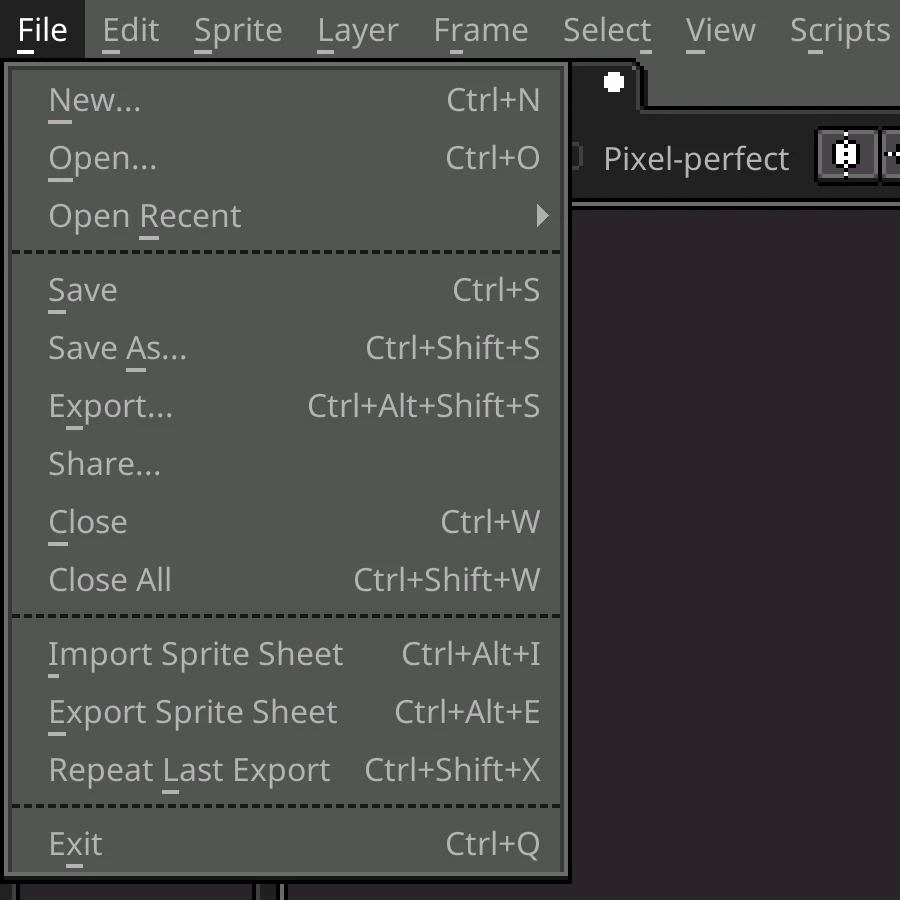
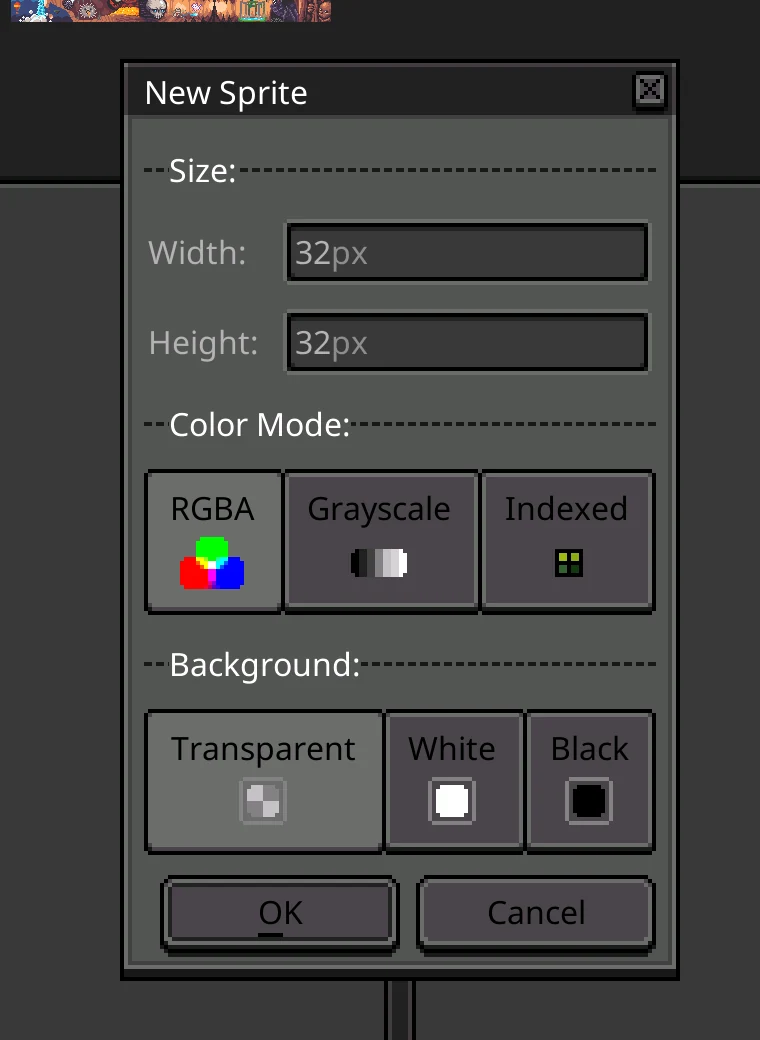

What it is like on Android
The Android build is the desktop program running full-screen, with the same menus, timeline and dialogs. You get the full editor, but it is built for a mouse and keyboard, so the controls are small on a phone. It is far more usable on a tablet with a stylus, or with a mouse and keyboard connected. Problems reported upstream by Android users (from the issue tracker; our emulator runs did not cover these):
| Report | Issue |
|---|---|
| Canvas lag while dragging on a mid-range phone | #430 |
| With a USB mouse: no cursor outside the canvas; on an older tablet, right and middle click not recognised; keyboard shortcuts only sometimes work | #495 |
| Frames can’t be dragged to reorder them in the timeline | #548 |
| Scripts folder can’t be opened (a fix for opening folders on Android is in the 1.3 source, but there is no 1.3 APK) | #611 |
| Palette files in the Download folder not shown in the file dialog | #613 |
| Saving files fails with the built-in file dialog | #632 |
Tips that help
- Save into LibreSprite’s own folders first, then copy the file out with your file manager, if saving elsewhere fails.
- Can’t drag frames? There is no “move frame” command, but you can duplicate a frame where you need it (Frame → Duplicate Cel(s)) and remove the old one (Frame → Remove Frame).
- A Bluetooth keyboard brings back the shortcuts: the full list.
Termux
Repology lists a libresprite package at version 1.3 in Termux, the Linux environment for Android. That is the regular Linux program: it needs an X11 display inside Termux (for example Termux:X11 or a VNC viewer) and some setup. It gives you a newer version than the APK, for people comfortable with a terminal. We did not test it.
Chromebook
- Best option: the Linux version. Turn on the Linux development environment (Settings → About ChromeOS → Developers), then use the AppImage or Flatpak inside it. You get 1.3 with full mouse and keyboard support.
- Or the Android APK, if your Chromebook runs Android apps. It is the older 1.2 build, with the limitations above.
- School-managed Chromebooks often block both. Then the browser route is the only one: see LibreSprite online.
iPad and iPhone
There is no LibreSprite for iPadOS or iOS, and no official plan for one in the repository. Apple only allows apps through the App Store (or approved alternative stores in some regions), and nobody has published LibreSprite there. Your options:
- Use a browser-based editor on the iPad: see LibreSprite online for what exists and what it can do.
- Use a native iPad pixel-art app, or use LibreSprite on a computer and sync files.
- Be wary of App Store listings that use the LibreSprite name or logo: they are not from the LibreSprite project.
Is Aseprite on Android?
No. Aseprite only has Windows, macOS and Linux versions. LibreSprite’s APK is the closest official thing to an Aseprite-style editor on Android. How the two compare.
FAQ
Is LibreSprite on the Google Play Store?
No. The official Android build is an APK on LibreSprite’s GitHub releases. Play Store listings using the name are not from the project.
Is the LibreSprite APK safe?
Get it only from the official GitHub release and check the SHA-256 above. It is debug-signed and not on Play, so Play Protect may warn about it. That warning is not proof of malware. More on safety: is LibreSprite safe?
Will LibreSprite 1.3 come to Android?
Not yet: the 1.3 release has no APK. Android builds depend on a separate repository (see issue #685), so they lag behind desktop releases.
Does it work with a stylus?
Yes, a stylus works as a pointer for drawing. Pressure sensitivity on Android is not something we could confirm.
Can I use it on an Android TV or a phone without a keyboard?
It runs, but the interface is tiny and many actions expect a keyboard or right click. A tablet with a stylus, or any device with a mouse and keyboard, is a much better experience.
Keep going
Found something wrong or out of date? Tell us: hello@libresprite.dev. We fix mistakes within a day.