Docs · Drawing tablets
Using a drawing tablet with LibreSprite
LibreSprite works with pen tablets and pen displays from brands such as Wacom, XP-Pen and Huion. Pen pressure support arrived in 1.2. Here is what pressure actually does, how to set a tablet up, and fixes for the problems tablet users report.
On this page 6 sections
Short answer
Does LibreSprite support pen pressure?
Yes, since 1.2. In 1.3 pressure changes the brush size: a light touch draws thinner, full pressure draws at the size you set in the tool options (never less than 1 px). Pressure does not change opacity, and custom image brushes ignore it. With the usual 1 px pixel-art pencil, pressure makes no difference, so the pen simply works like a precise mouse.
Our test: pressure works, with one bug
We had no physical tablet in our test lab, so we built a virtual one: a Linux input device with a pen, X/Y position and 4,096 pressure levels, running under a real X server. LibreSprite 1.3 recognised it (“Tablet support: OK” in its log) and we drew three strokes with the same 8 px Pencil:
- pen at 15 % pressure: a 1 px line;
- pen at full pressure: the full 8 px band;
- then the mouse: still a 1 px line.
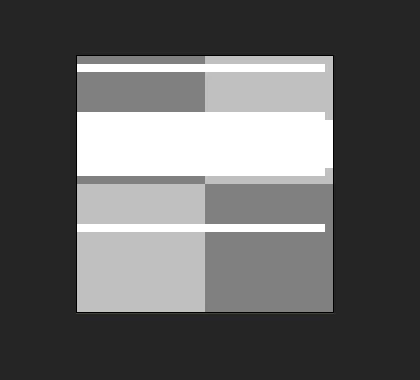
So pressure really does scale the brush. But after you use the pen, the mouse keeps the pen’s last pressure, which is zero once the nib lifts, so mouse strokes come out at the minimum size. The source shows why: the pressure value is reset for mouse input only in the browser build. If your mouse suddenly draws thin lines after using a tablet, this is the cause. We have not tested whether a restart or any setting clears it.
What we found in the source
- Every stroke point carries a pressure value; round and square brushes are regenerated at size × pressure, capped at the brush size you chose. Image (custom) brushes are drawn unchanged.
- Pressure is read with the small EasyTab library: through the Wintab interface on Windows and through X11 on Linux. macOS has its own tablet code. The development branch adds pressure through SDL3; the default build still uses SDL2.
- On Linux, EasyTab only treats an X input device as a tablet if its name contains “pen”, “stylus” or “eraser”. Our virtual tablet (“Virtual Drawing Tablet Pen”) qualified. Without a tablet, LibreSprite logs “Tablet support: FAILED” at start, which is harmless: mouse input works as normal.
Setting up a tablet
Install the tablet driver
Install your tablet maker’s current driver (Windows, macOS) or use your Linux distribution’s built-in support. Restart LibreSprite after installing.
Map the pen to the right screen
With a pen display, map the pen to that display in the driver settings, so the cursor lands under the nib.
Set the brush
For pressure-sensitive lines pick the Pencil (B), a round brush and a size of 4 px or more. For classic pixel art keep 1 px with pixel-perfect on.
Use the pen buttons
Map the side buttons to keys you use a lot, for example Alt (hold for the eyedropper), Space (hold to pan) or Ctrl+Z. Right-click on the pen paints with the background colour, or does whatever you chose in Preferences → Editor → Right-click.
Known tablet problems and fixes
| Problem | What to try |
|---|---|
| Mouse draws thin lines after using the pen | A bug we reproduced in 1.3 (see our test): the mouse keeps the pen’s last pressure. Keep using the pen for drawing, and watch LibreSprite’s issues for a fix. |
| No pressure at all | Use 1.3 (pressure arrived in 1.2). On Linux, check that xinput list shows your device with “Pen” or “Stylus” in its name. On Windows LibreSprite reads pressure through Wintab, so make sure your driver’s Wintab support is on (some drivers call the alternative “Windows Ink”). On Linux pressure comes through X11: try an X11 session if it is missing under Wayland. |
| Ctrl gets “stuck” when using tablet hotkeys (Windows 10, #496) | Tap Ctrl on the keyboard to release it; map tablet buttons to single keys rather than Ctrl combinations. |
| Cursor edges vanish at the first pen pressure (#561) | Try Preferences → Cursors → Use native mouse cursor, or another Brush Preview option. |
| Strokes start late or jump | Turn off GPU acceleration in Preferences → General, or disable “click on tap” gestures in the driver. |
| Cursor offset on a pen display | Map the pen to the correct monitor in the driver and check Windows display scaling. |
Something else? Search LibreSprite’s issues for your tablet model, and include the model, driver version and system when reporting.
Pixel art with a pen: tips
- A small tablet with a mouse-like hand position is often easier for pixel art than a large one: movements are short and precise.
- Zoom in further than with a mouse (5 or 6) so each pixel is a comfortable target.
- Use pressure for sketching on a separate layer with a bigger brush, then clean up with a 1 px pencil.
- Android tablets can run the LibreSprite APK. In our emulator tests, touch worked as a pointer (taps on menus, strokes on the canvas); we did not test a stylus there.
FAQ
Does pressure change opacity?
No, only brush size in 1.3. For softer shading use the Shading ink or lower the ink opacity in the tool options.
Which tablets work?
Any tablet that your system sees as a pen device should work; the 1.2 release notes mention the XP-Pen Artist 12. We tested pressure with a virtual Linux pen device, not with physical tablets, so we can’t vouch for particular models.
Does it work with an iPad and Apple Pencil?
There is no iPad version of LibreSprite. iPad options.
Keep going
Found something wrong or out of date? Tell us: hello@libresprite.dev. We fix mistakes within a day.