Guide · Reference image
Using a reference image in LibreSprite
Aseprite has special reference layers; LibreSprite 1.3 doesn’t. A normal layer, faded, locked and hidden at export time, does the same job, and it takes a minute to set up.
On this page 4 sections
Short answer
How do I add a reference image in LibreSprite?
Open the reference picture as its own file, select all (Ctrl+A), copy (Ctrl+C), switch to your sprite, add a new layer (Ctrl+Shift+N), paste (Ctrl+V) and scale it to fit. Then open Layer Properties (Shift+P), lower the opacity, drag the layer to the bottom, lock it, and draw on a layer above. Hide it before exporting.
Step by step
Bring the picture in
File → Open the reference (PNG, JPG, GIF…). It opens in its own tab. Ctrl+A, Ctrl+C. If it is much bigger than your sprite, shrink it first with Sprite → Sprite Size (Bilinear is fine here: it is only a reference).
Paste it on its own layer
Back in your sprite tab: Layer → New Layer (Ctrl+Shift+N), then Ctrl+V. The picture floats as a selection: drag to move, drag the handles to scale (Shift keeps proportions), Enter to drop.
Fade and name it
Layer → Properties (Shift+P): name it “ref”, set Opacity to around 80–120 of 255.
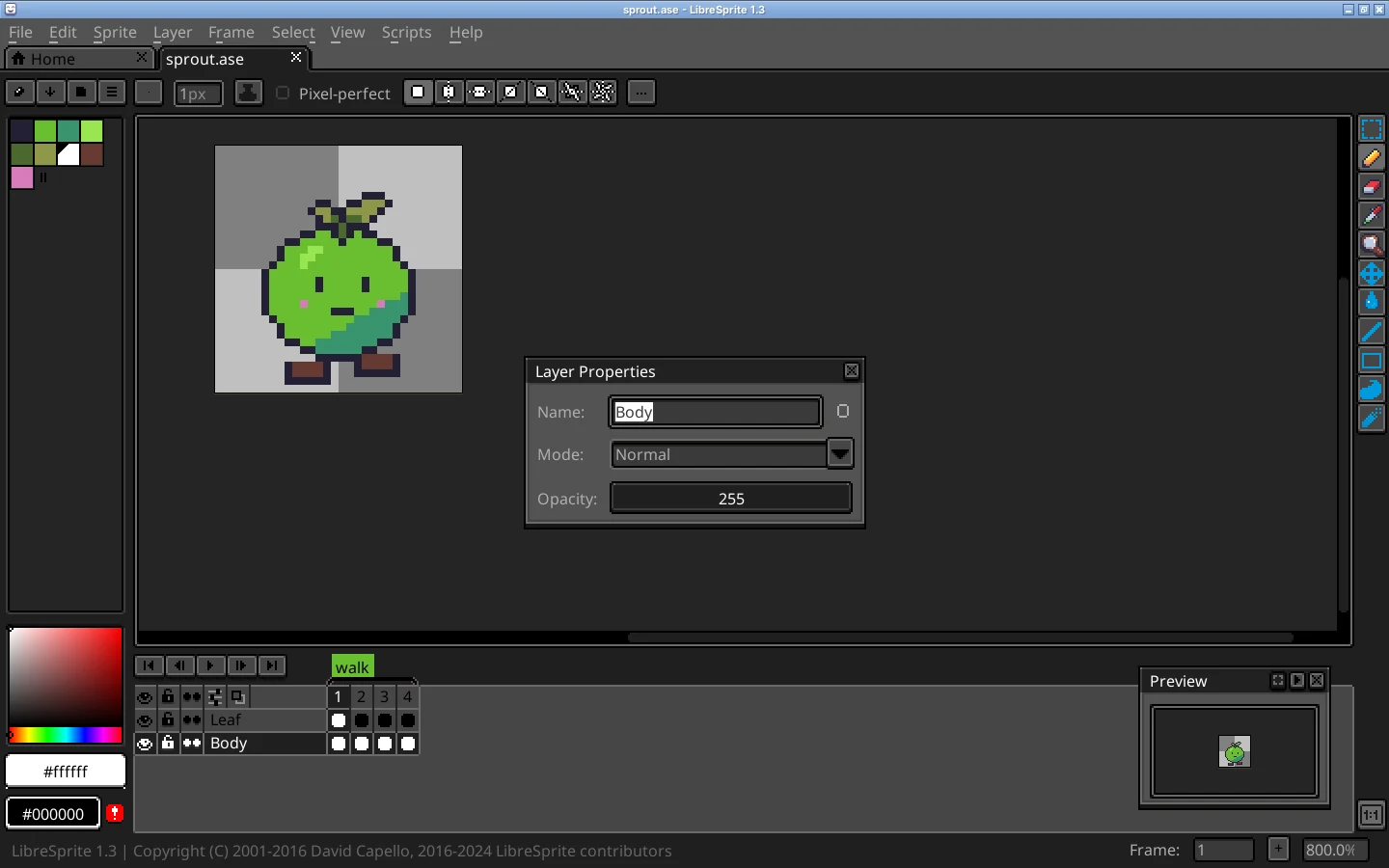
Real screenshot · Linux (Ubuntu 24.04, X11) · LibreSprite 1.3 (AppImage)Layer → Properties (Shift+P): name, blend mode and opacity. Put it at the bottom and lock it
Drag the layer to the bottom of the timeline (Tab shows it), then click its padlock so you can’t paint on it by accident. Add a new layer above for your drawing.
Hide it when you export
Click the eye icon (or Shift+X with the layer selected). Hidden layers are not exported, unless you use the command line with
--all-layers.
For animations
A reference pasted on one frame only appears on that frame. To keep it in every frame, use a linked cel: select the reference cel and use Frame → Duplicate Linked Cel(s) (Alt+M) while adding frames, or paste it into each frame. For rotoscoping a video, import the frames as a numbered image sequence (open frame1.png and LibreSprite asks to load the rest), and draw on a layer above.
Reference beside the canvas instead of under it
Keep the reference open in its own tab and use View → Duplicate View to see your sprite twice, or simply keep the picture in another window. LibreSprite has no floating reference panel.
FAQ
Does LibreSprite have reference layers like Aseprite?
No. A locked layer with low opacity is the standard replacement. Other differences.
My reference is blurry after scaling.
That is fine for tracing. Just don’t export the reference layer; your own pixels stay crisp.
Can I trace from a photo?
Yes. Lower the opacity, then place pixels on top, simplifying shapes and colours rather than copying every detail.
Keep going
Found something wrong or out of date? Tell us: hello@libresprite.dev. We fix mistakes within a day.