Docs · Canvas & selection
Canvas, sprite size and selections in LibreSprite
Making the image bigger, cutting it down, turning it and moving parts of it around are four different jobs in LibreSprite, each with its own command. This page shows which one to use so your pixels stay crisp.
On this page 8 sections
Short answer
How do I resize in LibreSprite?
To scale the art, use Sprite → Sprite Size with the Nearest-neighbor method and whole-number percentages (200 %, 300 %) so pixels stay sharp. To add or remove empty space without scaling, use Sprite → Canvas Size (C). To cut the image down to a selection, use Sprite → Crop; to remove empty borders, Sprite → Trim.
Sprite Size vs Canvas Size
Sprite Size (scales)
Every layer and frame is resized. Set the size in pixels or percent, with Lock Ratio to keep proportions, and pick a Method:
- Nearest-neighbor (default): copies pixels, no blur. Use it for pixel art.
- Bilinear: smooth and blurry; for non-pixel images.
- RotSprite: the pixel-art-aware algorithm also used for rotation; it keeps outlines cleaner when the scale is not a whole number.
Canvas Size (adds or removes space)
The art keeps its size; the canvas around it grows or shrinks. Type a new Width/Height and pick the anchor with the arrow buttons, or set Borders (Left, Top, Right, Bottom) directly. Negative borders cut pixels away.
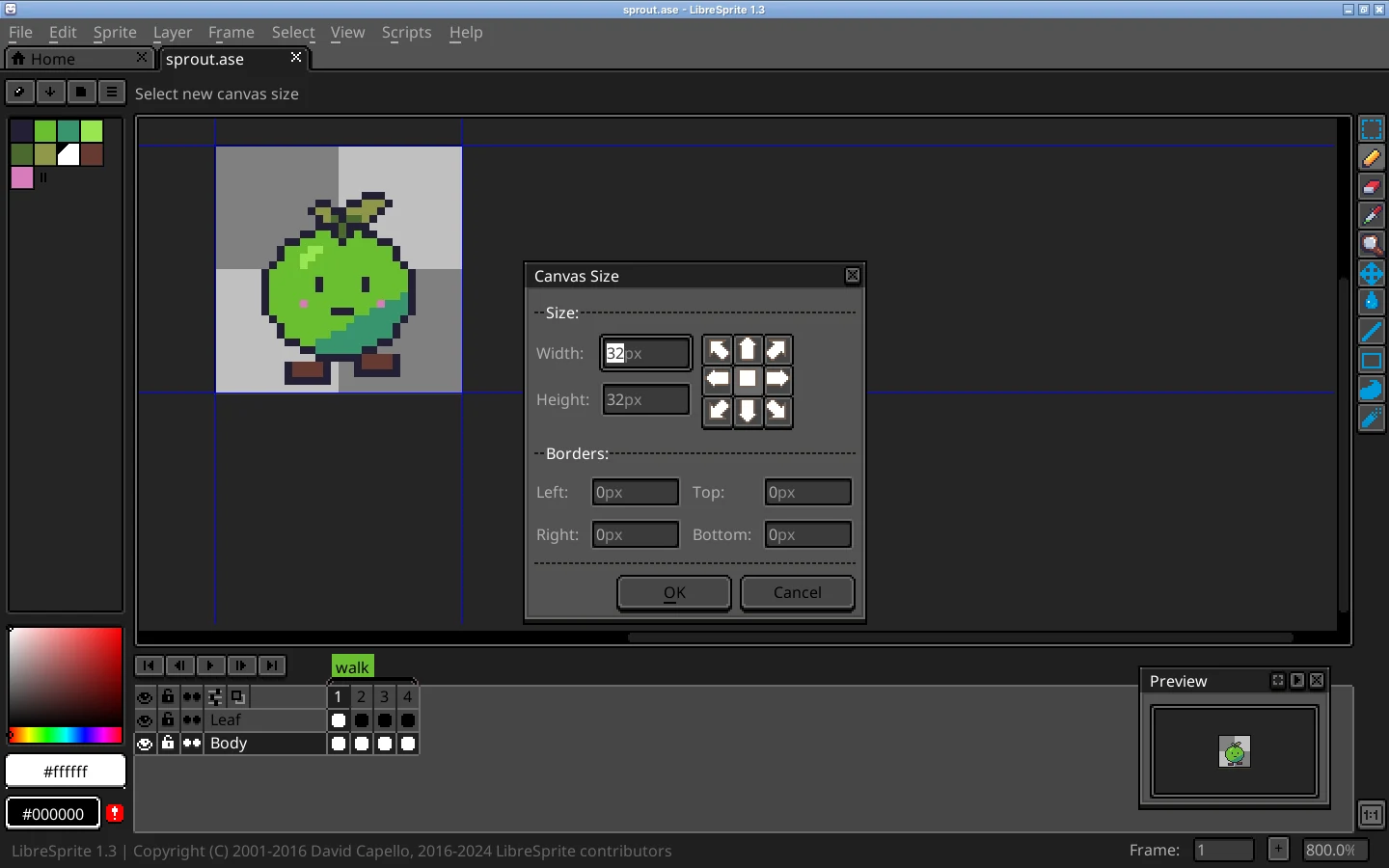
Upscaling for posting or a game
Pixel art looks best scaled by a whole number (2×, 3×, 4×). Don’t scale your working file; scale on export instead with the Resize option in File → Export, or use our pixel-art upscaler.
Crop and trim
- Sprite → Crop: make a selection first (M and drag), then Crop cuts the whole sprite (all layers and frames) down to it.
- Sprite → Trim: removes empty borders around the artwork automatically. Handy before exporting icons.
- Exporting a sprite sheet has its own Trim option that trims each frame in the sheet without changing your file (export).
Rotate and flip
| To turn… | Use | Key |
|---|---|---|
| The whole sprite (every layer and frame) | Sprite → Rotate Canvas → 180 / 90 CW / 90 CCW, Flip Canvas Horizontal / Vertical | — |
| The selection, or the current cel if nothing is selected | Edit → Rotate → 180 / 90 CW / 90 CCW | — |
| Mirror the selection or cel | Edit → Flip Horizontal / Flip Vertical | Shift+H / Shift+V |
| Any angle | Transform the selection (Ctrl+T) and drag just outside a corner handle | Shift snaps the angle |
Known issue in 1.3: RotSprite and 90° turns
If the tool options bar is set to RotSprite, rotating a selection by exactly 90° or 180° still changes some pixels, and repeated turns damage the art. The default Fast Rotation is pixel-perfect for right angles, so switch to it for 90° turns. LibreSprite’s master branch fixed this on 27 October 2026 (commit fd0b7fd); the fix is not in the 1.3 release.
Select, deselect and change a selection
The selection tools are Rectangular Marquee (M), Elliptical Marquee (Shift+M), Lasso (Q), Polygonal Lasso (Shift+Q) and Magic Wand (W, selects touching pixels of the same colour, with a tolerance). While dragging, hold Shift to add and Shift+Alt to subtract, or use the replace / add / subtract buttons in the tool options bar.
| Command | Key | What it does |
|---|---|---|
| Select → All | Ctrl+A | Select the whole canvas |
| Select → Deselect | Ctrl+D | Remove the selection |
| Select → Reselect | Ctrl+Shift+D | Bring the last selection back |
| Select → Inverse | Ctrl+Shift+I | Select everything else |
| Select → Color Range | — | Select every pixel of a colour anywhere in the cel, not just touching ones |
| Select → Modify → Border / Expand / Contract | — | Turn the selection into an edge band, or grow or shrink it by N pixels (circle or square brush) |
| Select → Load from / Save to MSK file | — | Store a selection shape in a .msk file |
Drawing tools only paint inside an active selection, which is an easy way to protect the rest of the sprite.
Move, scale and rotate a selection
Lift the pixels
Select an area, then drag inside it with the Move tool (V, or hold Ctrl), or press Ctrl+T (Edit → Transform).
Transform
Drag the edge handles to scale (Shift keeps the aspect ratio, Alt scales from the pivot), drag just outside a corner to rotate (Shift snaps the angle), and use the arrow keys to nudge by one pixel. Hold Ctrl while dragging to leave a copy behind.
Choose how it is drawn
The tool options bar shows the pivot point, Fast Rotation or RotSprite, and Opaque or Transparent (whether the transparent colour of the pasted pixels is drawn).
Drop it
Press Enter or click the tick button to apply, or Esc to cancel.
Copy, paste and new sprites
- Ctrl+C copies from the current layer; Copy Merged (Ctrl+Shift+C) copies what you see with all layers combined.
- Ctrl+V pastes as a floating selection you can move before dropping. Paste between tabs to move art between sprites.
- Edit → New Sprite from Selection (Ctrl+Alt+N) opens the selected pixels as a new sprite.
- Edit → New Brush (Ctrl+B) turns the selection into a custom brush, a quick stamp tool.
Centre a drawing on the canvas
LibreSprite has no “align centre” command. Two exact ways:
- Trim, then add equal borders: Sprite → Trim removes empty space, then Sprite → Canvas Size with the centre anchor brings it back to the size you want. The art ends up centred, give or take one pixel for odd sizes.
- By hand: turn on the grid (Shift+G) set to half the canvas size in View → Grid → Grid Settings, select the art, and move it with the arrow keys until it is centred on the grid lines.
(Shift+C centres the view on the sprite, not the art on the canvas.)
FAQ
How do I make the canvas bigger without stretching my art?
Sprite → Canvas Size (C). Enter a larger width and height and choose where the existing art should sit.
Why is my resized pixel art blurry?
The Bilinear method was used, or a non-integer scale. Undo, then use Sprite Size with Nearest-neighbor and 200 %, 300 % and so on.
How do I flip a sprite in LibreSprite?
Whole sprite: Sprite → Rotate Canvas → Flip Canvas Horizontal. Just part of it: select it and press Shift+H (or Shift+V for vertical).
How do I remove a selection?
Ctrl+D (Select → Deselect). To delete the selected pixels instead, press Del.
Do transforms apply to all frames?
Moving or transforming a selection works on the current cel. Sprite Size, Canvas Size, Crop, Trim and Rotate Canvas always apply to every layer and frame.
Keep going
Found something wrong or out of date? Tell us: hello@libresprite.dev. We fix mistakes within a day.