Docs · Menu reference
LibreSprite menu reference
Every item in every menu of LibreSprite 1.3, in the order you see it, with its default shortcut and a plain explanation. The list itself is generated from LibreSprite’s data/gui.xml, so nothing is missing or invented.
On this page 11 sections
Short answer
Where is a command in LibreSprite?
Press / to search this site, or use the browser’s find (Ctrl+F) on this page. Most drawing work happens in Edit (selection and filters), Sprite (size, colour mode, rotate), Layer and Frame. View holds the grid, onion skin, Tiled Mode, symmetry and the timeline. Shortcuts for everything are on the shortcuts page.
File menu
| Item | Key | What it does |
|---|---|---|
| New... | Ctrl+N | Create a new sprite: size, colour mode (RGBA, Grayscale, Indexed) and background (Transparent, White, Black). |
| Open... | Ctrl+O | Open a sprite or image. Numbered files (walk1.png, walk2.png…) can be opened as one animation. |
| Open Recent | The files you opened most recently. | |
| Save | Ctrl+S | Save the sprite. New sprites ask for a name; use .ase to keep layers, frames and tags. |
| Save As... | Ctrl+Shift+S | Save under a new name or format; the tab then points to the new file. |
| Export... | Ctrl+Alt+Shift+S | Write a copy (PNG, GIF, numbered frames…) without changing the open file. Offers a Resize option. |
| Share... | Hand the saved file to another app (Android) or download it (web version). Greyed out on desktop. | |
| Close | Ctrl+W | Close the current tab (asks to save changes). |
| Close All | Ctrl+Shift+W | Close every open sprite. |
| Import Sprite Sheet | Ctrl+Alt+I | Turn a sprite sheet image into frames by cutting it into a grid. |
| Export Sprite Sheet | Ctrl+Alt+E | Pack frames (and optionally layers) into one image, with optional JSON data. |
| Repeat Last Export | Ctrl+Shift+X | Run the last export again with the same settings. |
| Exit | Ctrl+QorAlt+F4 | Quit LibreSprite (asks to save changes). |
Edit menu
| Item | Key | What it does |
|---|---|---|
| Keyboard Shortcuts... | Ctrl+Alt+Shift+K | View, search, change, import and export keyboard shortcuts. |
| Preferences... | Ctrl+KorCtrl+Shift+O | Open Preferences. |
| Undo | Ctrl+ZorCtrl+U | Undo the last change. |
| Redo | Ctrl+YorCtrl+RorCtrl+Shift+Z | Redo what you undid. |
| Undo History | A list of every change; click one to jump back to it. | |
| Cut | Ctrl+XorShift+Del | Cut the selection to the clipboard. |
| Copy | Ctrl+CorCtrl+Ins | Copy the selection from the current layer. |
| Copy Merged | Ctrl+Shift+C | Copy the selection as it looks with all visible layers combined. |
| Paste | Ctrl+VorShift+Ins | Paste the clipboard as a movable, scalable selection; click outside or press Enter to drop it. |
| Clear | DelorBackspace | Delete the selected pixels (or the whole cel with no selection). |
| Rotate → 180 | Rotate the selection (or the current cel) by 180° or 90°. | |
| Rotate → 90 CW | Rotate the selection (or the current cel) by 180° or 90°. | |
| Rotate → 90 CCW | Rotate the selection (or the current cel) by 180° or 90°. | |
| Flip Horizontal | Shift+H | Mirror the selection (or the current cel). |
| Flip Vertical | Shift+V | Mirror the selection (or the current cel). |
| Transform | Ctrl+T | Turn the selected pixels into a floating selection you can move, scale and rotate. |
| Shift → Left | Shift the selected pixels by one pixel; what leaves one side comes back on the other (wrap). | |
| Shift → Right | Shift the selected pixels by one pixel; what leaves one side comes back on the other (wrap). | |
| Shift → Up | Shift the selected pixels by one pixel; what leaves one side comes back on the other (wrap). | |
| Shift → Down | Shift the selected pixels by one pixel; what leaves one side comes back on the other (wrap). | |
| New Brush | Ctrl+B | Make a custom brush from the selection (Ctrl+B). |
| New Sprite from Selection | Ctrl+Alt+N | Open the selected pixels as a new sprite. |
| Replace Color... | Shift+R | Swap one colour for another, with a tolerance, in the active cel, layer, frame or whole sprite. |
| Invert | Invert the colours of the selection or cel. | |
| FX → Convolution Matrix | F9 | Apply a filter kernel (blur, sharpen, edge detection and more) from a list of presets. |
| FX → Color Curve | Ctrl+MorF10 | Adjust brightness and contrast with a curve. |
| FX → Despeckle (median filter) | Median filter: removes stray single pixels and noise. | |
| Insert Text | T | Type text and paste it as pixels: font, size, colour and optional anti-aliasing. |
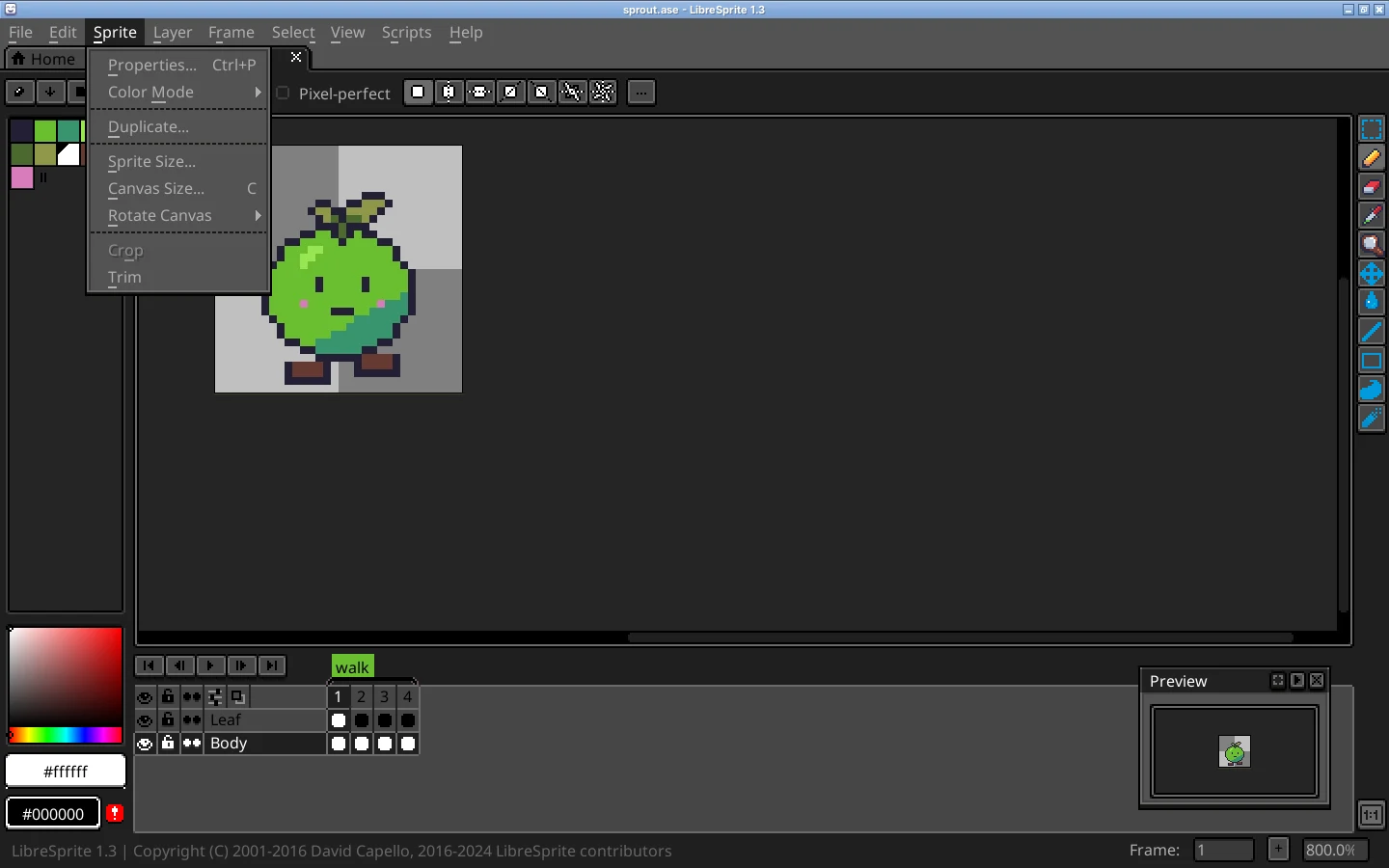
Sprite menu
| Item | Key | What it does |
|---|---|---|
| Properties... | Ctrl+P | Sprite information, and the transparent colour for indexed sprites. |
| Color Mode → RGB Color | Convert the sprite’s colour mode. Indexed modes map every pixel to the current palette. | |
| Color Mode → Grayscale | Convert the sprite’s colour mode. Indexed modes map every pixel to the current palette. | |
| Color Mode → Indexed (No Dithering) | Convert the sprite’s colour mode. Indexed modes map every pixel to the current palette. | |
| Color Mode → Indexed (Ordered Dither) | Convert the sprite’s colour mode. Indexed modes map every pixel to the current palette. | |
| Duplicate... | Copy the sprite into a new tab, optionally with merged layers only. | |
| Sprite Size... | Scale the sprite by pixels or percent, with Nearest-neighbor (crisp pixels), Bilinear or RotSprite. | |
| Canvas Size... | C | Add or remove space around the sprite without scaling it. |
| Rotate Canvas → 180 | Rotate the whole sprite, every layer and frame. | |
| Rotate Canvas → 90 CW | Rotate the whole sprite, every layer and frame. | |
| Rotate Canvas → 90 CCW | Rotate the whole sprite, every layer and frame. | |
| Rotate Canvas → Flip Canvas Horizontal | Mirror the whole sprite. | |
| Rotate Canvas → Flip Canvas Vertical | Mirror the whole sprite. | |
| Crop | Cut the sprite down to the selection. | |
| Trim | Remove empty (transparent or background-coloured) borders around the artwork. |
Layer menu
| Item | Key | What it does |
|---|---|---|
| Properties... | Shift+P | Name, blend mode and opacity of the layer. |
| Visible | Shift+X | Show or hide the current layer. |
| New Layer | Ctrl+Shift+N | Add a layer above the current one. |
| Remove Layer | Delete the current layer. | |
| Background from Layer | Make the layer an opaque Background layer at the bottom. | |
| Layer from Background | Turn the Background into a normal layer that can be transparent. | |
| Duplicate | Ctrl+J | Copy the layer with all its cels. |
| Merge Down | Ctrl+E | Combine the layer with the one below it. |
| Flatten | Ctrl+Shift+E | Combine all layers into one. |
Frame menu
| Item | Key | What it does |
|---|---|---|
| Frame Properties... | P | Duration of the selected frame(s) in milliseconds. |
| Cel Properties... | Opacity of the selected cel. | |
| New Frame | Alt+N | Add a frame after the current one. |
| New Empty Frame | Alt+B | Add an empty frame. |
| Duplicate Cel(s) | Alt+D | Copy the selected cels into new frames. |
| Duplicate Linked Cel(s) | Alt+MorAlt+Shift+D | Add frames whose cels are linked to the current ones (edit one, all change). |
| Remove Frame | Alt+Shift+C | Delete the current frame. |
| Tags → Tag Properties... | Name, colour, range and direction (forward, reverse, ping-pong) of a tag. | |
| Tags → New Tag | Tag the selected frames, for example “walk”. | |
| Tags → Remove Tag | Delete the tag (the frames stay). | |
| Jump to → First Frame | Home | Jump to frame 1. |
| Jump to → Previous Frame | Left | Previous frame. |
| Jump to → Next Frame | Right | Next frame. |
| Jump to → Last Frame | End | Last frame. |
| Jump to → Go to Frame | Alt+G | Type a frame number to jump to. |
| Play Animation | Enter | Play or stop the animation on the canvas. |
| Constant Frame Rate | Set one duration for every frame at once. | |
| Reverse Frames | Alt+I | Reverse the order of the selected frames. |
Select menu
| Item | Key | What it does |
|---|---|---|
| All | Ctrl+A | Select the whole canvas. |
| Deselect | Ctrl+D | Remove the selection. |
| Reselect | Ctrl+Shift+D | Bring the last selection back. |
| Inverse | Ctrl+Shift+I | Select everything that was not selected. |
| Color Range | Select every pixel of a colour (with tolerance) in the cel. | |
| Modify → Border | Turn the selection into a band along its edge. | |
| Modify → Expand | Grow the selection by a number of pixels. | |
| Modify → Contract | Shrink the selection by a number of pixels. | |
| Load from MSK file | Load a selection from a .msk file. | |
| Save to MSK file | Save the selection to a .msk file. |
View menu
| Item | Key | What it does |
|---|---|---|
| Duplicate View | Open a second view of the same sprite in a new tab, for example zoomed out. | |
| Extras | Ctrl+H | Show or hide all overlays (grid, edges, brush preview) at once. |
| Show → Layer Edges | Outline the bounds of the current cel. | |
| Show → Selection Edges | Show the “marching ants” around the selection. | |
| Show → Grid | Shift+G | Show the grid. |
| Show → Pixel Grid | Alt+Shift+G | Show a line between every pixel when zoomed in. |
| Show → Brush Preview | Show the brush shape under the cursor. | |
| Grid → Grid Settings | Grid position and cell size. | |
| Grid → Selection as Grid | Use the current selection’s size and position as the grid cell. | |
| Grid → Snap to Grid | Shift+S | Make tools and selections snap to the grid. |
| Tiled Mode → None | Repeat the sprite around itself to check seamless tiles; drawing wraps across edges. | |
| Tiled Mode → Tiled in Both Axes | Shift+T | Repeat the sprite around itself to check seamless tiles; drawing wraps across edges. |
| Tiled Mode → Tiled in X Axis | Repeat the sprite around itself to check seamless tiles; drawing wraps across edges. | |
| Tiled Mode → Tiled in Y Axis | Repeat the sprite around itself to check seamless tiles; drawing wraps across edges. | |
| Symmetry Options | Turn symmetry on and choose its mode. | |
| Symmetry Axes → Reset Symmetry to Center | Move the symmetry axes back to the sprite centre or the centre of the view. | |
| Symmetry Axes → Reset Symmetry to View Center | Move the symmetry axes back to the sprite centre or the centre of the view. | |
| Set Loop Section | F2 | Mark a range of frames to loop while playing. |
| Show Onion Skin | F3 | Show faded neighbouring frames while you animate. |
| Timeline | Tab | Show or hide the timeline. |
| Alternate Timeline | Move the timeline beside the canvas instead of under it. | |
| Touchbar | Show a bar of big buttons for touchscreens. | |
| Alternate Touchbar | Move the touchbar to the other side. | |
| Preview | F7 | Show or hide the Preview window. |
| Alternate Toolbar | Move the toolbar to the left edge. | |
| Fullscreen Preview | F8 | Show the sprite alone, full screen. |
| Toggle Fullscreen | Shift+F | Make the LibreSprite window full screen. |
| Home | Open the Home tab. | |
| Refresh & Reload Skin | F5 | Redraw the interface and reload the theme from disk (useful when editing a theme). |
Scripts menu
| Item | Key | What it does |
|---|---|---|
| Scripting Console | F12 | Open the JavaScript console. |
| Open Folder | Open your scripts folder in the file manager. | |
| Rescan scripts | Reload the Scripts menu after adding or removing scripts. |
Help menu
| Item | Key | What it does |
|---|---|---|
| Readme | Opens https://github.com/LibreSprite/LibreSprite#readme in your browser. | |
| Quick Reference | Opens https://github.com/LibreSprite/libresprite.github.io/wiki/Know-your-workspace in your browser. | |
| Documentation | Opens https://github.com/LibreSprite/libresprite.github.io/wiki in your browser. | |
| Tutorial | Opens https://github.com/LibreSprite/libresprite.github.io/wiki in your browser. | |
| Release Notes | Opens /releases/ in your browser. | |
| Donate | Opens https://liberapay.com/LibreSprite in your browser. | |
| About | Version and credits. |
Right-click menus
A few menus only appear when you right-click: on a layer name in the timeline (layer commands), on a frame number (frame commands and tags), on a cel, and on a tab. The palette has its own Options menu. They repeat commands from the main menus.
FAQ
Where is the Export option in LibreSprite?
File → Export… (Ctrl+Alt+Shift+S) for single images and GIFs, File → Export Sprite Sheet (Ctrl+Alt+E) for sheets. Export guide.
Where are Resize and Crop?
Sprite → Sprite Size (scale), Sprite → Canvas Size (add or remove space), Sprite → Crop (to the selection) and Sprite → Trim (remove empty borders). Canvas and selection.
What does Help → Quick Reference open?
The “Know your workspace” page of LibreSprite’s community wiki on GitHub, in your browser. All Help items open web pages.
What does File → Share do?
On Android it passes the saved file to another app, and in the browser version it downloads the file to your computer. On Windows, macOS and Linux it is greyed out.
Keep going
Found something wrong or out of date? Tell us: hello@libresprite.dev. We fix mistakes within a day.